> ## Documentation Index
> Fetch the complete documentation index at: https://docs.evo-ai.co/llms.txt
> Use this file to discover all available pages before exploring further.
# Quickstart
> Set up your first AI agent application in less than 2 minutes
## Overview
This guide will help you set up Evo AI and create your first functional agent in just a few minutes. You will learn to:
1. **Register** on the online platform
2. **Confirm your account** via email
3. **Configure API Keys** from AI providers
4. **Create your first LLM agent**
5. **Test the chat** with your agent
**Online Platform**: This guide uses the online version of Evo AI at [app.evo-ai.co](https://app.evo-ai.co/login).
For local installation, check our [installation guide](/installation).
## Step 1: Platform Registration
### Creating Your Account
1. Go to [app.evo-ai.co/login](https://app.evo-ai.co/login)
2. Click on the **"Register"** tab at the top of the screen
3. You will see the Evolution API registration form
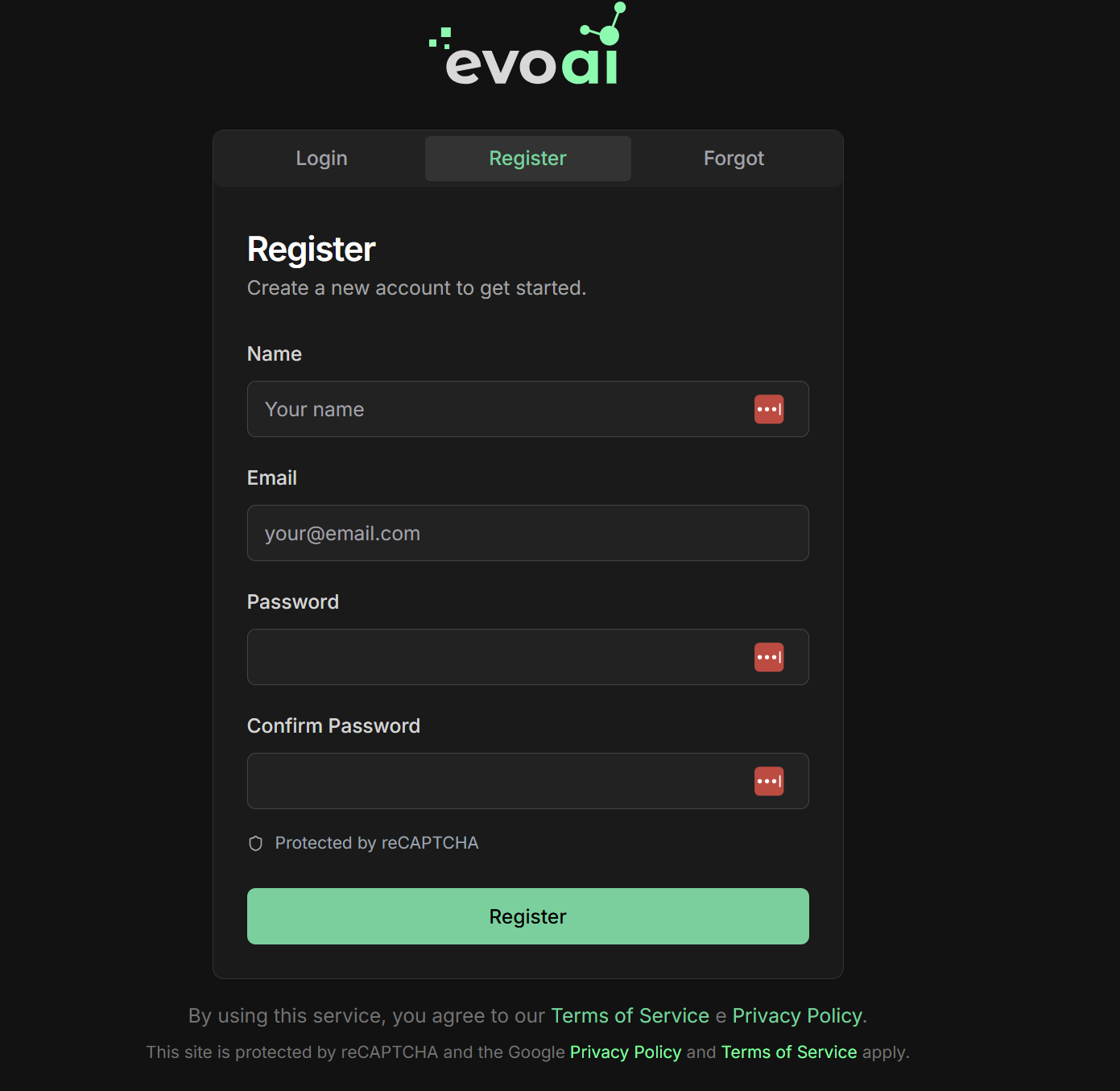 Fill in all mandatory fields:
* **Name**: Your full name
* **Email**: Valid email (will be used for verification)
* **Password**: Secure password (minimum 8 characters)
* **Confirm Password**: Confirm your password
Make sure to use a valid email, as you will receive a confirmation link.
* The platform has **reCAPTCHA** protection for security
* Complete the reCAPTCHA verification when requested
* By using the service, you agree to the **Terms of Service** and **Privacy Policy**
* The site is protected by Google reCAPTCHA
## Step 2: Email Confirmation
### Account Verification
1. After registration, check your inbox
2. Look for a confirmation email from Evolution API
3. Click on the verification link in the email
4. Your account will be activated automatically
If you don't receive the confirmation email:
1. Go back to [app.evo-ai.co/login](https://app.evo-ai.co/login)
2. Click on the **"Login"** tab
3. Try to log in with your **email** and **password**
4. If the account is not verified, click on **"Resend Verification"**
5. A new email will be sent
Also check your spam or junk folder.
## Step 3: First Login
### Accessing the Platform
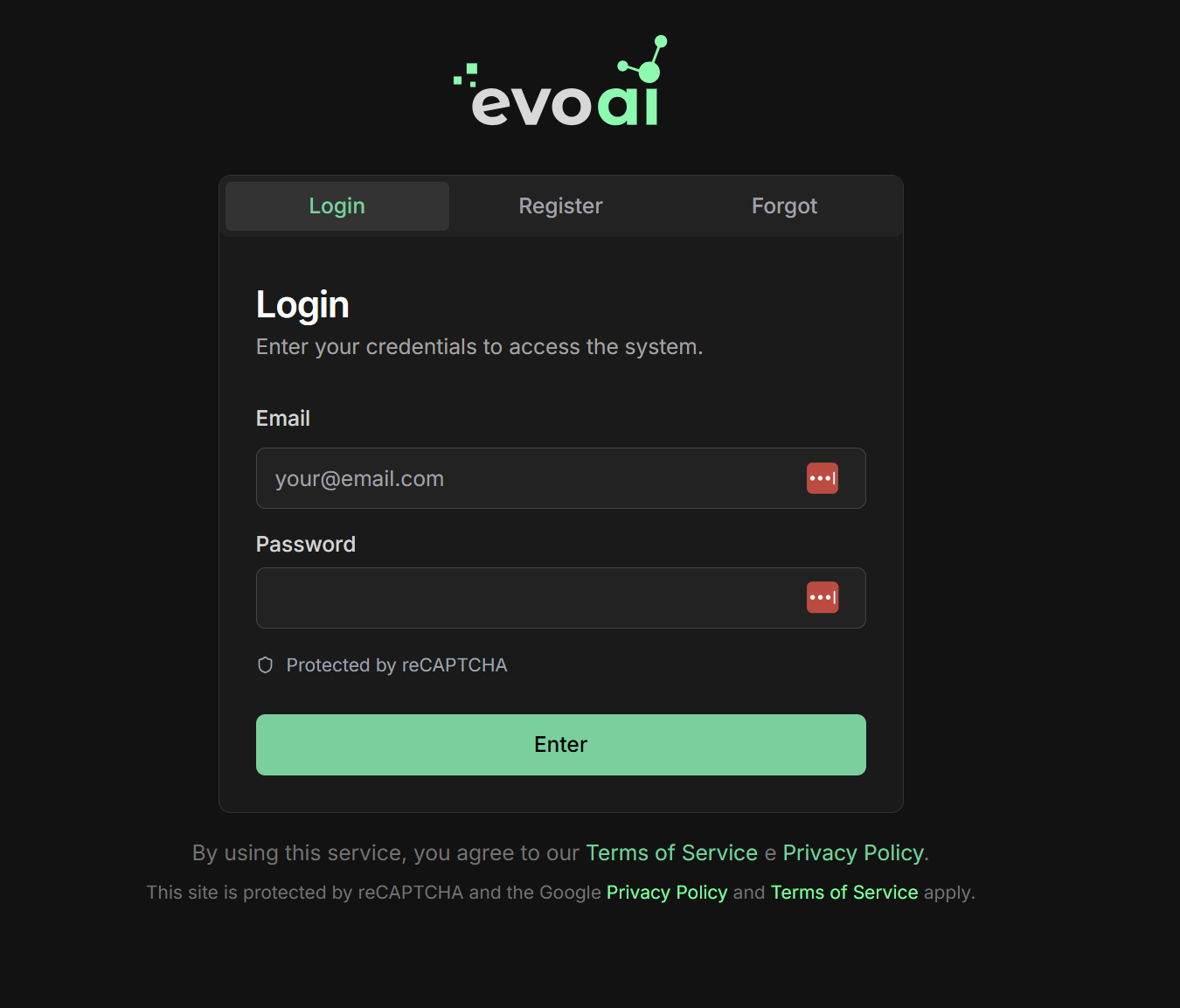
1. Go to [app.evo-ai.co/login](https://app.evo-ai.co/login)
2. Click on the **"Login"** tab
3. Enter your **email** and **password**
4. Complete the **reCAPTCHA** verification if requested
5. Click **"Enter"**
6. You will be redirected to the main dashboard
Fill in all mandatory fields:
* **Name**: Your full name
* **Email**: Valid email (will be used for verification)
* **Password**: Secure password (minimum 8 characters)
* **Confirm Password**: Confirm your password
Make sure to use a valid email, as you will receive a confirmation link.
* The platform has **reCAPTCHA** protection for security
* Complete the reCAPTCHA verification when requested
* By using the service, you agree to the **Terms of Service** and **Privacy Policy**
* The site is protected by Google reCAPTCHA
## Step 2: Email Confirmation
### Account Verification
1. After registration, check your inbox
2. Look for a confirmation email from Evolution API
3. Click on the verification link in the email
4. Your account will be activated automatically
If you don't receive the confirmation email:
1. Go back to [app.evo-ai.co/login](https://app.evo-ai.co/login)
2. Click on the **"Login"** tab
3. Try to log in with your **email** and **password**
4. If the account is not verified, click on **"Resend Verification"**
5. A new email will be sent
Also check your spam or junk folder.
## Step 3: First Login
### Accessing the Platform
1. Go to [app.evo-ai.co/login](https://app.evo-ai.co/login)
2. Click on the **"Login"** tab
3. Enter your **email** and **password**
4. Complete the **reCAPTCHA** verification if requested
5. Click **"Enter"**
6. You will be redirected to the main dashboard
 ## Step 4: Configuring API Keys
### Adding AI Providers
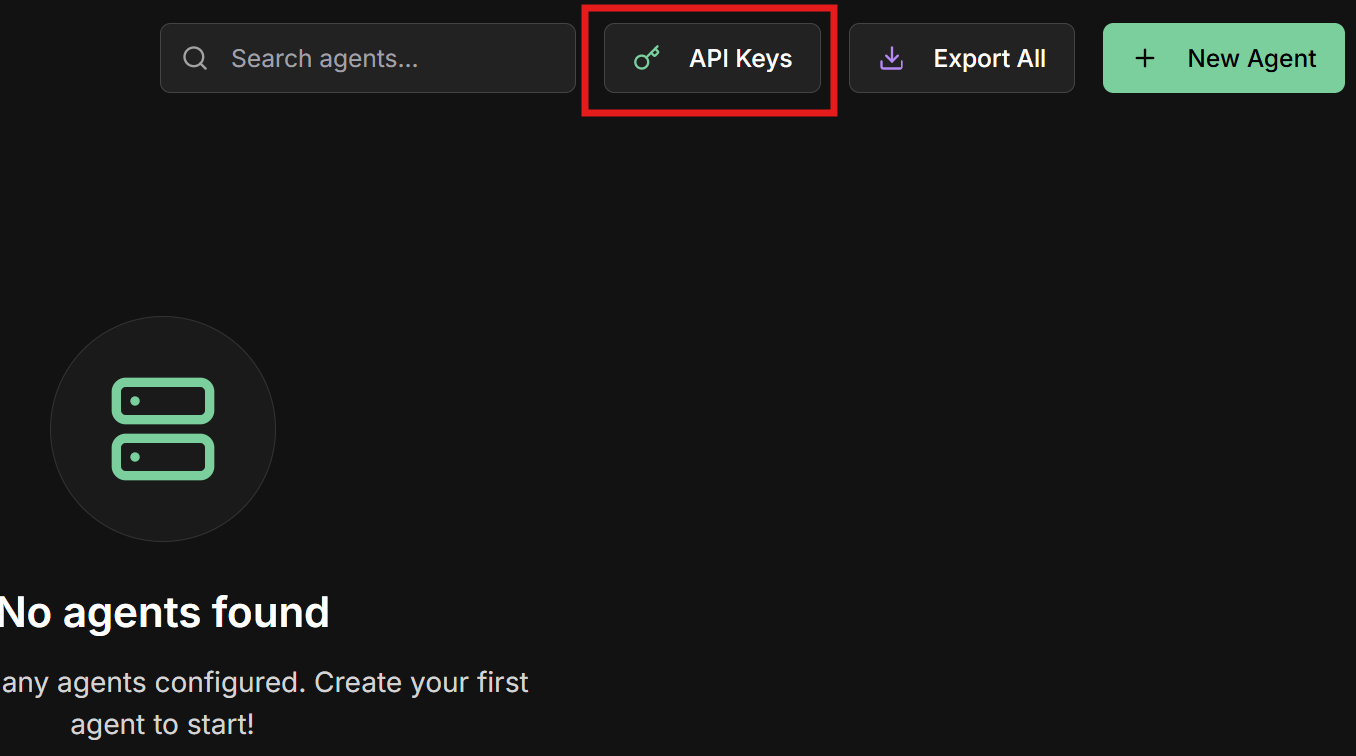
1. After logging in, you will be on the **agents screen**
2. Click on **"API Keys"** in the side menu
3. You will see the list of available providers
## Step 4: Configuring API Keys
### Adding AI Providers
1. After logging in, you will be on the **agents screen**
2. Click on **"API Keys"** in the side menu
3. You will see the list of available providers
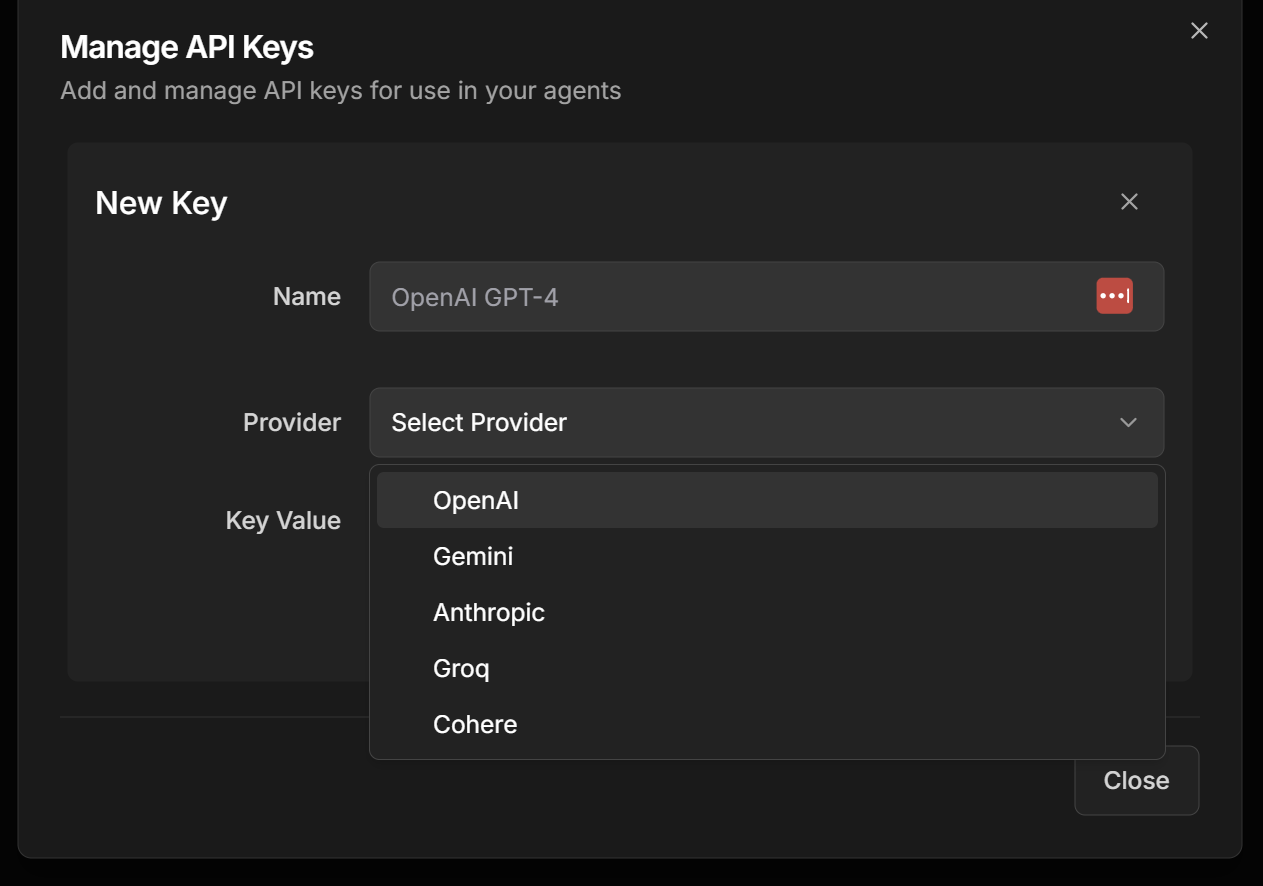
 In the API Keys screen you will see all supported providers:
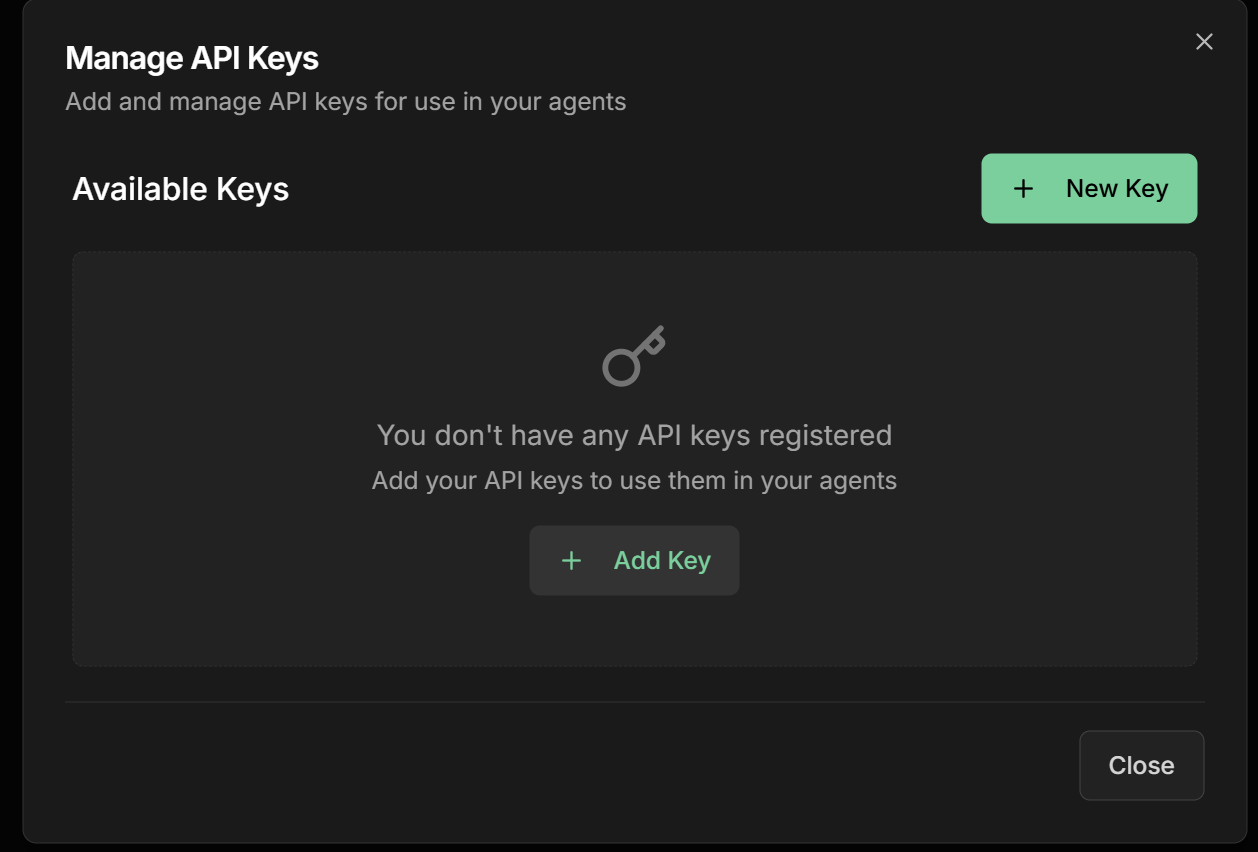 **Available providers:**
* **OpenAI** (GPT-4, GPT-3.5-turbo)
* **Gemini** (Google AI)
* **Anthropic** (Claude)
* **Groq** (Llama, Mixtral)
* **Cohere** (Command, Embed)
**To add an API Key:**
1. Select the desired provider
2. Paste your API Key in the corresponding field
3. Click **"Save"** or **"Add"**
**Available providers:**
* **OpenAI** (GPT-4, GPT-3.5-turbo)
* **Gemini** (Google AI)
* **Anthropic** (Claude)
* **Groq** (Llama, Mixtral)
* **Cohere** (Command, Embed)
**To add an API Key:**
1. Select the desired provider
2. Paste your API Key in the corresponding field
3. Click **"Save"** or **"Add"**
 **Security**: All API Keys are saved **end-to-end encrypted** for maximum security.
**OpenAI:**
* Go to [platform.openai.com](https://platform.openai.com)
* Go to "API Keys" and create a new key
**Google Gemini:**
* Go to [ai.google.dev](https://ai.google.dev)
* Get your free API key
**Anthropic:**
* Go to [console.anthropic.com](https://console.anthropic.com)
* Create an account and generate your API key
**Groq:**
* Go to [console.groq.com](https://console.groq.com)
* Register and get free access
**Cohere:**
* Go to [dashboard.cohere.ai](https://dashboard.cohere.ai)
* Create an account and generate your key
## Step 5: Creating Your First Agent
### LLM Agent Configuration
1. On the main screen, click **"New Agent"**
2. You will be directed to the creation form
**Security**: All API Keys are saved **end-to-end encrypted** for maximum security.
**OpenAI:**
* Go to [platform.openai.com](https://platform.openai.com)
* Go to "API Keys" and create a new key
**Google Gemini:**
* Go to [ai.google.dev](https://ai.google.dev)
* Get your free API key
**Anthropic:**
* Go to [console.anthropic.com](https://console.anthropic.com)
* Create an account and generate your API key
**Groq:**
* Go to [console.groq.com](https://console.groq.com)
* Register and get free access
**Cohere:**
* Go to [dashboard.cohere.ai](https://dashboard.cohere.ai)
* Create an account and generate your key
## Step 5: Creating Your First Agent
### LLM Agent Configuration
1. On the main screen, click **"New Agent"**
2. You will be directed to the creation form
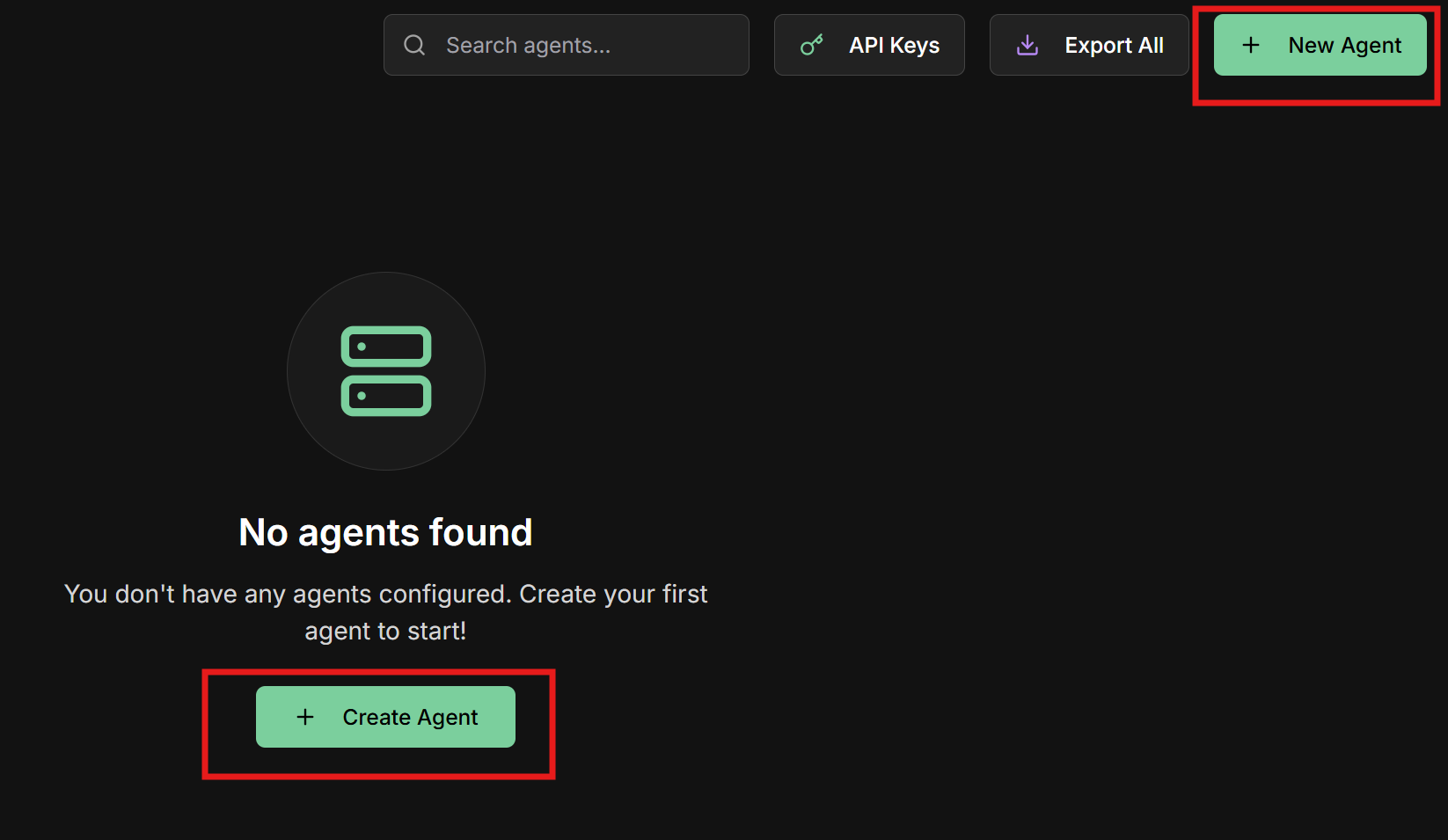 Fill in all form fields:
**Type:** Select **"LLM Agent"**
**Name:** Name of your agent
```
Example: Sales Assistant
```
**Description:** Clear description of the purpose
```
Example: Agent specialized in customer service and sales
```
**Role:** Role that the agent will play
```
Example: Specialized sales consultant
```
**Goal:** Main objective of the agent
```
Example: Help customers find suitable products and close sales
```
**API Key:** Select one of the already registered API Keys
**Model:** Choose the AI model
```
Examples:
- OpenAI: gpt-4, gpt-3.5-turbo
- Gemini: gemini-pro
- Anthropic: claude-3-sonnet
- Groq: llama2-70b-chat
```
**Instructions:** Detailed instructions for the agent
```
Example:
You are a professional and friendly sales assistant.
Always be polite, ask relevant questions to understand
customer needs and offer personalized solutions.
Keep a conversational tone and help customers make
informed decisions.
```
Fill in all form fields:
**Type:** Select **"LLM Agent"**
**Name:** Name of your agent
```
Example: Sales Assistant
```
**Description:** Clear description of the purpose
```
Example: Agent specialized in customer service and sales
```
**Role:** Role that the agent will play
```
Example: Specialized sales consultant
```
**Goal:** Main objective of the agent
```
Example: Help customers find suitable products and close sales
```
**API Key:** Select one of the already registered API Keys
**Model:** Choose the AI model
```
Examples:
- OpenAI: gpt-4, gpt-3.5-turbo
- Gemini: gemini-pro
- Anthropic: claude-3-sonnet
- Groq: llama2-70b-chat
```
**Instructions:** Detailed instructions for the agent
```
Example:
You are a professional and friendly sales assistant.
Always be polite, ask relevant questions to understand
customer needs and offer personalized solutions.
Keep a conversational tone and help customers make
informed decisions.
```
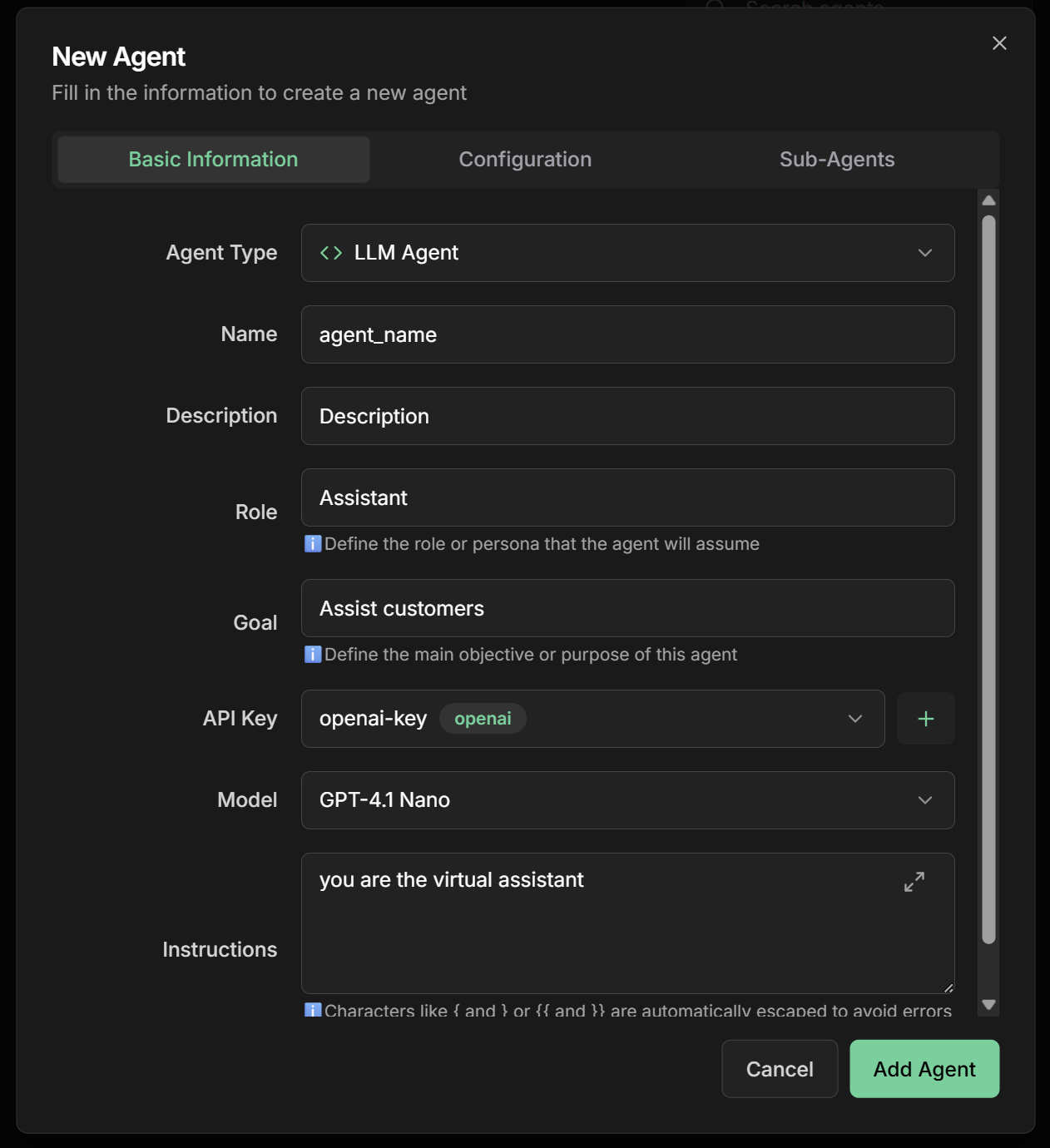 1. Review all configurations
2. Click **"Save"** or **"Create Agent"**
3. Wait for creation confirmation
4. Your agent will be available in the agents list
## Step 6: Testing the Chat
### First Conversation with Your Agent
1. Go to the **chat screen** in the main menu
2. Click **"New Chat"** to start a new conversation
1. Review all configurations
2. Click **"Save"** or **"Create Agent"**
3. Wait for creation confirmation
4. Your agent will be available in the agents list
## Step 6: Testing the Chat
### First Conversation with Your Agent
1. Go to the **chat screen** in the main menu
2. Click **"New Chat"** to start a new conversation
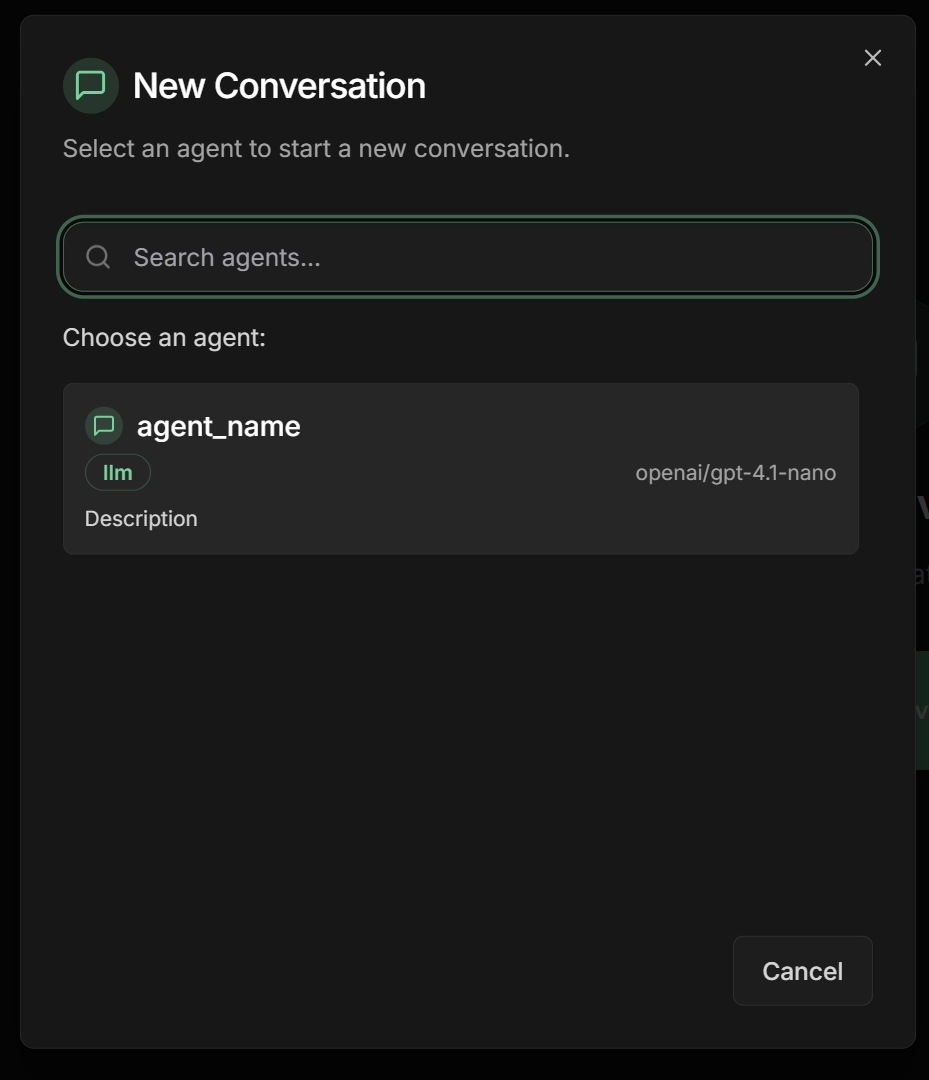
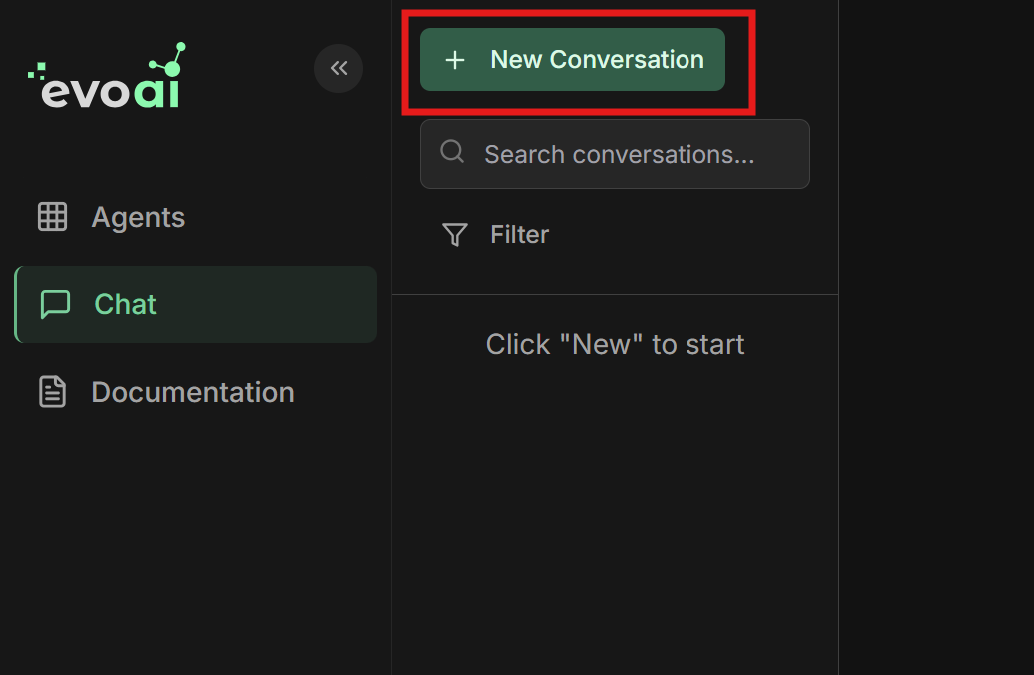 1. Select the agent you just created
2. The chat interface will load with the chosen agent
1. Select the agent you just created
2. The chat interface will load with the chosen agent
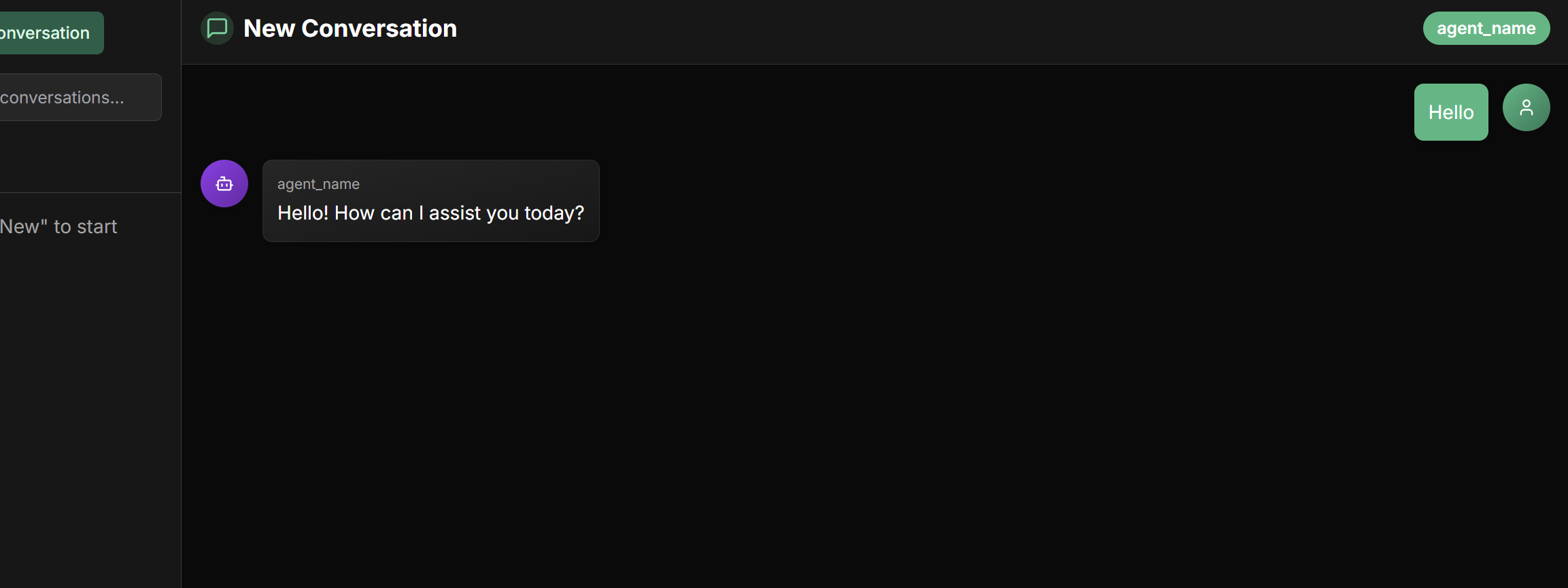
 1. Type a test message in the text box
```
Example: Hello! I need help choosing a product for my company.
```
2. Press **Enter** or click the send button
3. Wait for the agent's response
4. Continue the conversation naturally
1. Type a test message in the text box
```
Example: Hello! I need help choosing a product for my company.
```
2. Press **Enter** or click the send button
3. Wait for the agent's response
4. Continue the conversation naturally
 Now you can:
* **Ask questions** about any topic related to the agent's role
* **Test different scenarios** to validate responses
* **Evaluate the quality** of interactions
* **Adjust settings** if necessary
Try different types of questions to test your agent's versatility!
## Next Steps
Integrate agents using the Agent 2 Agent protocol for external communication
Configure shared agents for team collaboration
Explore different agent types: LLM, Sequential, Parallel, Loop, Workflow and Task
Configure credentials, custom tools and MCP servers
## Troubleshooting
**I don't receive confirmation email:**
* Check spam/junk folder
* Use "Resend Verification" on the login screen
* Wait a few minutes before trying again
**Error adding API Key:**
* Check if the API Key is correct
* Confirm there are available credits in the provider account
* Test the API Key directly on the provider's website
**Agent doesn't respond:**
* Check if the API Key is working
* Confirm the selected model is available
* Check if there are sufficient quotas/credits
**reCAPTCHA error:**
* Clear browser cache and cookies
* Try using another browser
* Check your internet connection
***
🎉 **Congratulations!** You have successfully created your first agent in Evo AI and can now start chatting with it. Explore the advanced features to create even more powerful experiences!
Now you can:
* **Ask questions** about any topic related to the agent's role
* **Test different scenarios** to validate responses
* **Evaluate the quality** of interactions
* **Adjust settings** if necessary
Try different types of questions to test your agent's versatility!
## Next Steps
Integrate agents using the Agent 2 Agent protocol for external communication
Configure shared agents for team collaboration
Explore different agent types: LLM, Sequential, Parallel, Loop, Workflow and Task
Configure credentials, custom tools and MCP servers
## Troubleshooting
**I don't receive confirmation email:**
* Check spam/junk folder
* Use "Resend Verification" on the login screen
* Wait a few minutes before trying again
**Error adding API Key:**
* Check if the API Key is correct
* Confirm there are available credits in the provider account
* Test the API Key directly on the provider's website
**Agent doesn't respond:**
* Check if the API Key is working
* Confirm the selected model is available
* Check if there are sufficient quotas/credits
**reCAPTCHA error:**
* Clear browser cache and cookies
* Try using another browser
* Check your internet connection
***
🎉 **Congratulations!** You have successfully created your first agent in Evo AI and can now start chatting with it. Explore the advanced features to create even more powerful experiences!