> ## Documentation Index
> Fetch the complete documentation index at: https://docs.evo-ai.co/llms.txt
> Use this file to discover all available pages before exploring further.
# Knowledge Base
> Create and manage knowledge bases so your agents have access to your organization-specific information
## Overview
The **Knowledge Base** is where you store and organize information specific to your company, products, processes, or any content that your agents need to know. It's like creating a "digital library" that your agents can consult to provide more accurate and up-to-date responses.
**Why use Knowledge Base?**
* 🎯 **Specific responses**: Your agents use information from your company, not just general knowledge
* 📚 **Updated information**: Keep data always current about products, policies, processes
* 🔍 **Smart search**: System automatically finds relevant information for each question
* 🏷️ **Tag organization**: Filter and organize content by specific categories
**What are "chunks"?** When you add a document, the system divides the content into small pieces called "chunks" (like pages of a book). This allows the agent to find exactly the relevant information without having to "read" the entire document for each question.
## How to Create Your Knowledge Base
### Step 1: Access Knowledge Base
1. In the Evo AI main menu, click on **"Knowledge"**
2. You'll see the list of all existing knowledge bases
3. Click on **"Add Knowledge"** to create a new base
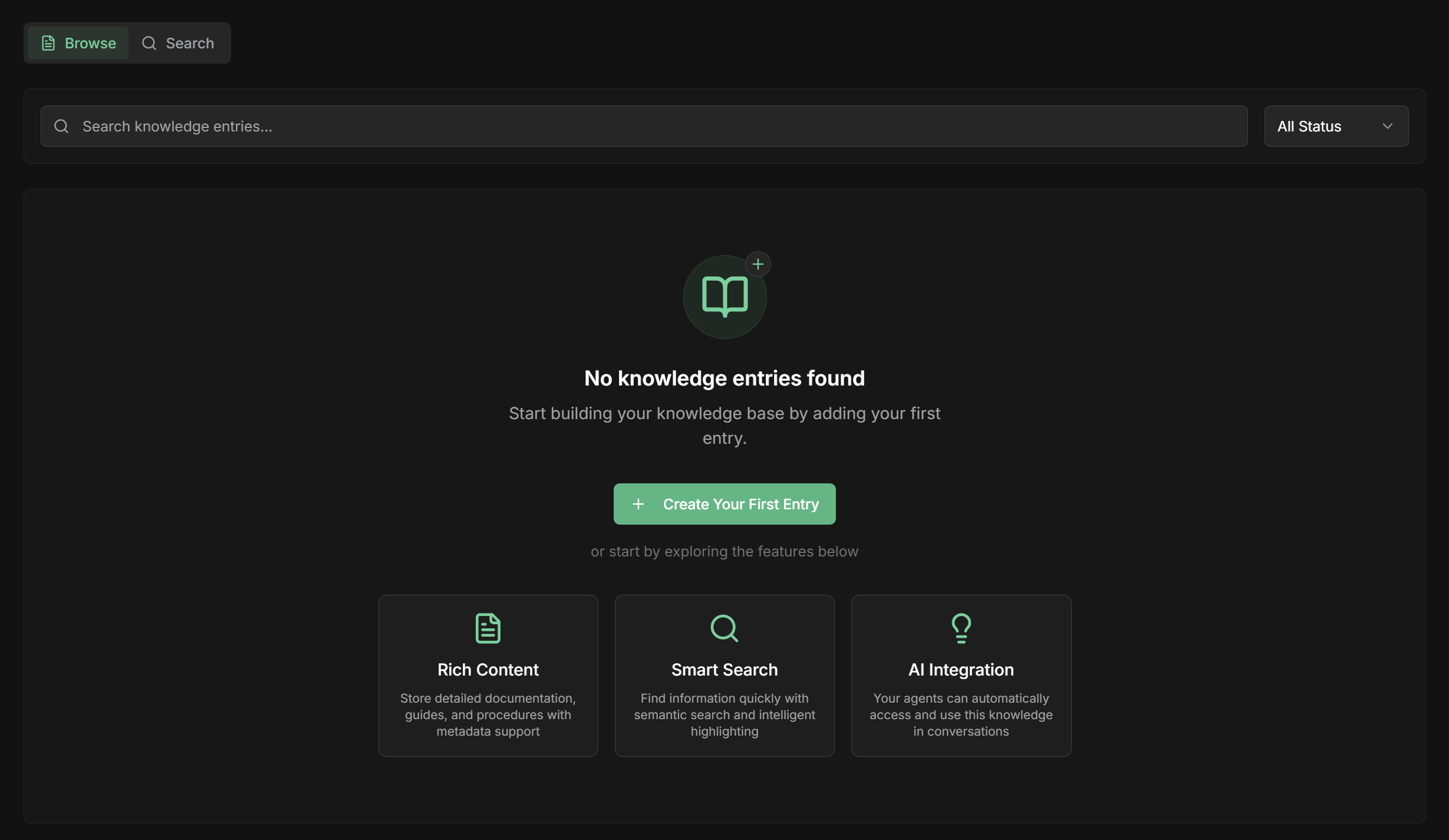 You can create multiple knowledge bases to organize information by area: sales, support, products, etc.
### Step 2: Choose Content Type
There are three ways to add information to your knowledge base:
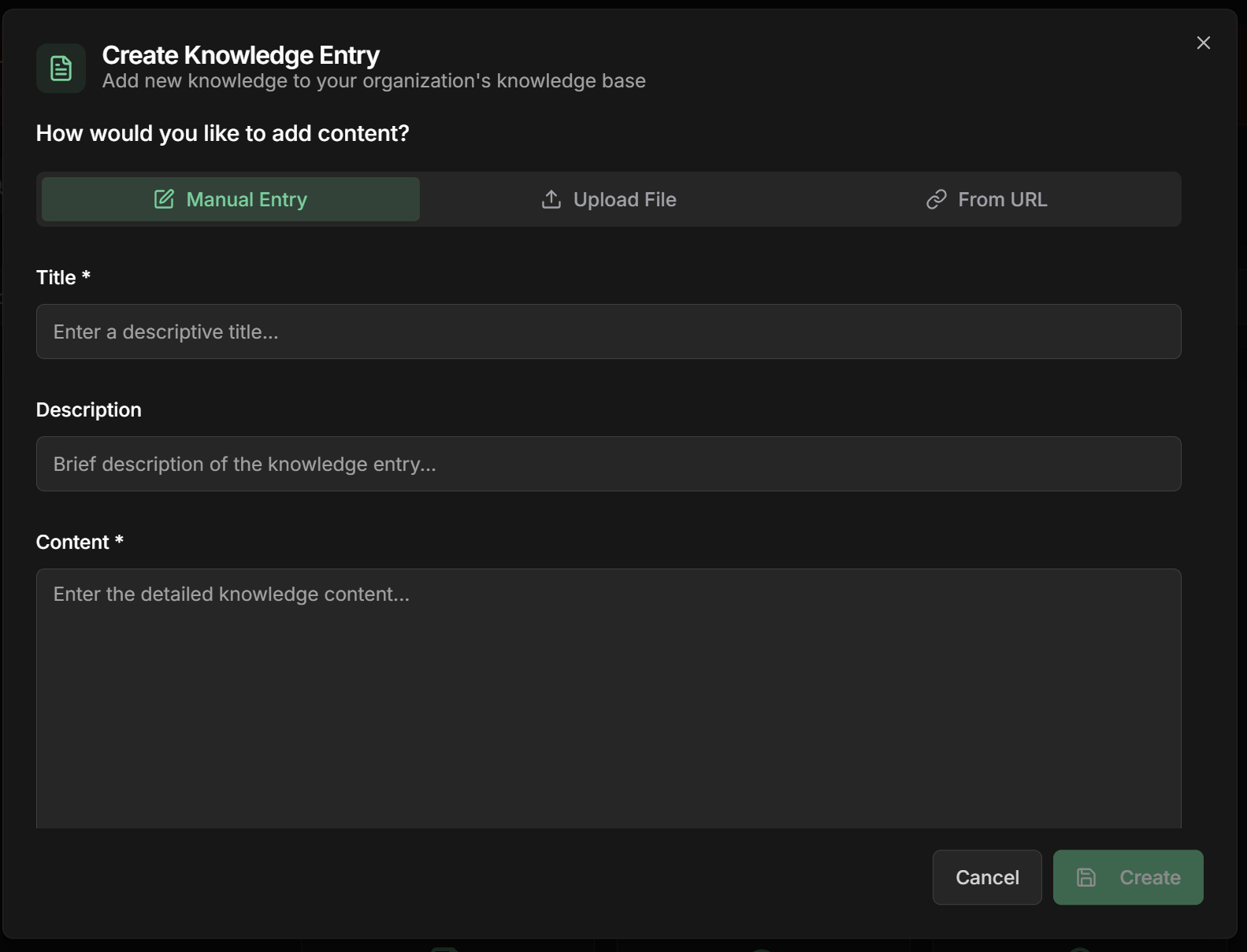
**Ideal for:** Policies, procedures, FAQs, specific information
1. Select **"Manual Text Entry"**
2. **Name:** Give it a descriptive title (e.g., "Return Policy")
3. **Content:** Type or paste the text directly
4. **Tags:** Add keywords to organize (e.g., "sales", "policy", "returns")
You can create multiple knowledge bases to organize information by area: sales, support, products, etc.
### Step 2: Choose Content Type
There are three ways to add information to your knowledge base:
**Ideal for:** Policies, procedures, FAQs, specific information
1. Select **"Manual Text Entry"**
2. **Name:** Give it a descriptive title (e.g., "Return Policy")
3. **Content:** Type or paste the text directly
4. **Tags:** Add keywords to organize (e.g., "sales", "policy", "returns")
 **Practical example:**
```markdown theme={null}
Name: Notebook Warranty Policy
Content:
Our notebooks have a 12-month warranty for manufacturing defects.
The warranty covers: screen problems, keyboard, battery and internal components.
Does not cover: physical damage, drops, liquids or misuse.
To activate, customer must present invoice and complete registration.
Tags: warranty, notebook, policy, support
```
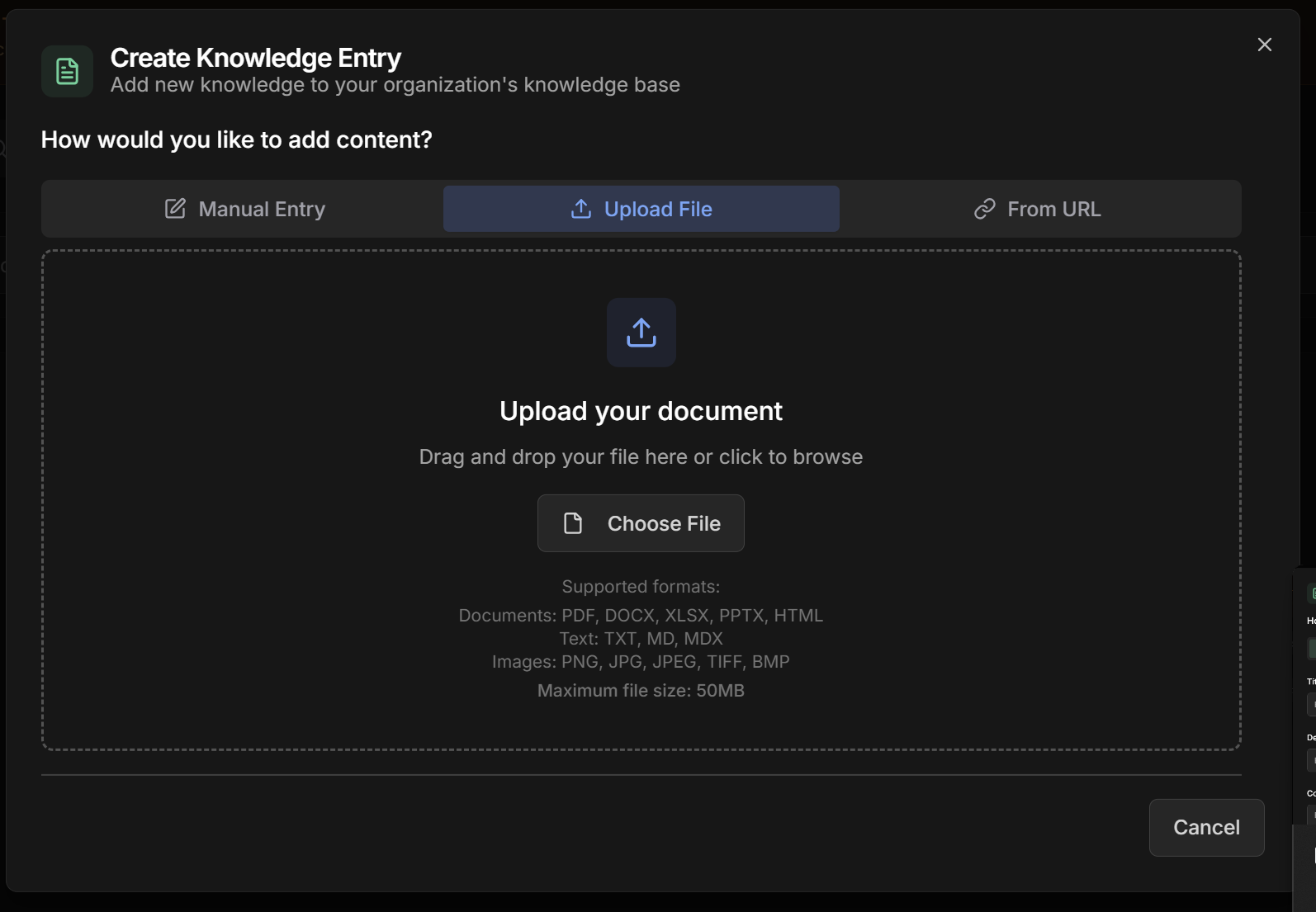
**Supported formats:**
**📄 Documents:**
* PDF, DOCX, XLSX, PPTX, HTML
**📝 Text:**
* TXT, MD, MDX
**🖼️ Images:**
* PNG, JPG, JPEG, TIFF, BMP
**Maximum limit:** 50MB per file
**How to do it:**
1. Select **"File Upload"**
2. **Drag and drop** the file or click to select
3. **Name:** The system suggests automatically, but you can change it
4. **Wait for processing** - the system extracts text and creates chunks automatically
5. **Review the automatically generated tags**
**Practical example:**
```markdown theme={null}
Name: Notebook Warranty Policy
Content:
Our notebooks have a 12-month warranty for manufacturing defects.
The warranty covers: screen problems, keyboard, battery and internal components.
Does not cover: physical damage, drops, liquids or misuse.
To activate, customer must present invoice and complete registration.
Tags: warranty, notebook, policy, support
```
**Supported formats:**
**📄 Documents:**
* PDF, DOCX, XLSX, PPTX, HTML
**📝 Text:**
* TXT, MD, MDX
**🖼️ Images:**
* PNG, JPG, JPEG, TIFF, BMP
**Maximum limit:** 50MB per file
**How to do it:**
1. Select **"File Upload"**
2. **Drag and drop** the file or click to select
3. **Name:** The system suggests automatically, but you can change it
4. **Wait for processing** - the system extracts text and creates chunks automatically
5. **Review the automatically generated tags**
 **Tip:** For large PDFs, the system divides into smaller chunks. For example, a 50-page manual becomes about 20-30 thematic chunks.
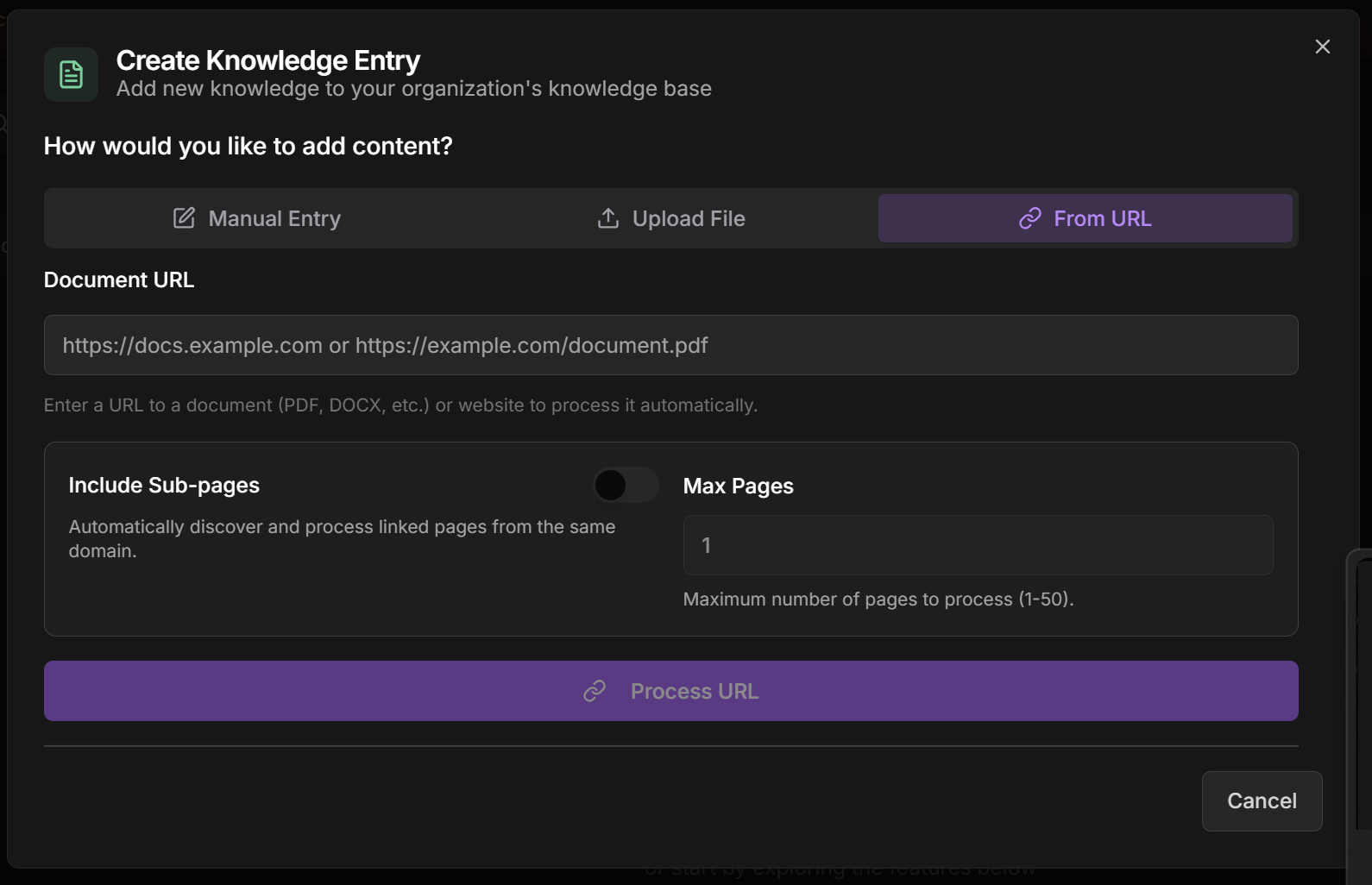
**Ideal for:** Websites, online documentation, web articles
**Features:**
* **Simple URL:** Processes a specific page
* **Automatic sub-pages:** Discovers and processes linked pages from the same domain
**How to configure:**
1. Select **"URL Processing"**
2. **URL:** Paste the link to the page or online document
3. **Include Sub-pages:** ✅ Check to process related pages
4. **Maximum sub-pages:** Set limit (recommended: 10-50 depending on site)
5. **Wait for processing** - may take a few minutes for large sites
**Tip:** For large PDFs, the system divides into smaller chunks. For example, a 50-page manual becomes about 20-30 thematic chunks.
**Ideal for:** Websites, online documentation, web articles
**Features:**
* **Simple URL:** Processes a specific page
* **Automatic sub-pages:** Discovers and processes linked pages from the same domain
**How to configure:**
1. Select **"URL Processing"**
2. **URL:** Paste the link to the page or online document
3. **Include Sub-pages:** ✅ Check to process related pages
4. **Maximum sub-pages:** Set limit (recommended: 10-50 depending on site)
5. **Wait for processing** - may take a few minutes for large sites
 **Practical example:**
```
URL: https://company.com/documentation/products
Include Sub-pages: ✅ Yes
Max Sub-pages: 25
Result: System processes main page + up to 25 related pages
automatically (e.g., /products/notebook, /products/smartphone, etc.)
```
**Advantages:**
* Automatic web content updates
* Captures complete documentation structure
* Saves time vs. manual upload
### Step 3: Automatic Tags and Metadata
**How it works:**
* The system **analyzes content** using AI
* **Automatically generates tags** based on main themes
* **You can edit, add or remove** tags as needed
* **Tags help with search** and filters by agents
**Examples of automatic tags:**
```
Document: "iPhone 15 Manual"
Generated tags: smartphone, apple, iphone, manual, setup, usage
Document: "HR Policy - Vacation"
Generated tags: hr, vacation, policy, employees, rights
Document: "Q3 Financial Report"
Generated tags: financial, report, Q3, revenue, expenses, profit
```
**How to customize:**
* ✅ **Keep relevant tags** that facilitate search
* ➕ **Add specific tags** from your business
* ❌ **Remove generic tags** that don't add value
* 🎯 **Use consistent tags** between similar documents
**What is metadata?**
* Extra information about each chunk (piece of content)
* Includes: source, date, file type, size, relevance
* Helps the system find more precise information
**Automatically generated metadata:**
```
Chunk 1 - iPhone Manual (Pages 1-2):
- Source: manual_iphone_15.pdf
- Size: 1.2kb
- Themes: initial setup, first use
- Relevance: high for "how to configure"
Chunk 2 - iPhone Manual (Pages 10-12):
- Source: manual_iphone_15.pdf
- Size: 0.8kb
- Themes: camera, photos, videos
- Relevance: high for "taking photos"
```
**How the system uses it:**
* **Contextual search:** Finds most relevant chunk for each question
* **Smart filtering:** Avoids unnecessary information
* **Ranking:** Prioritizes most useful chunks for the answer
## Testing Your Knowledge Base
### Search and Verification
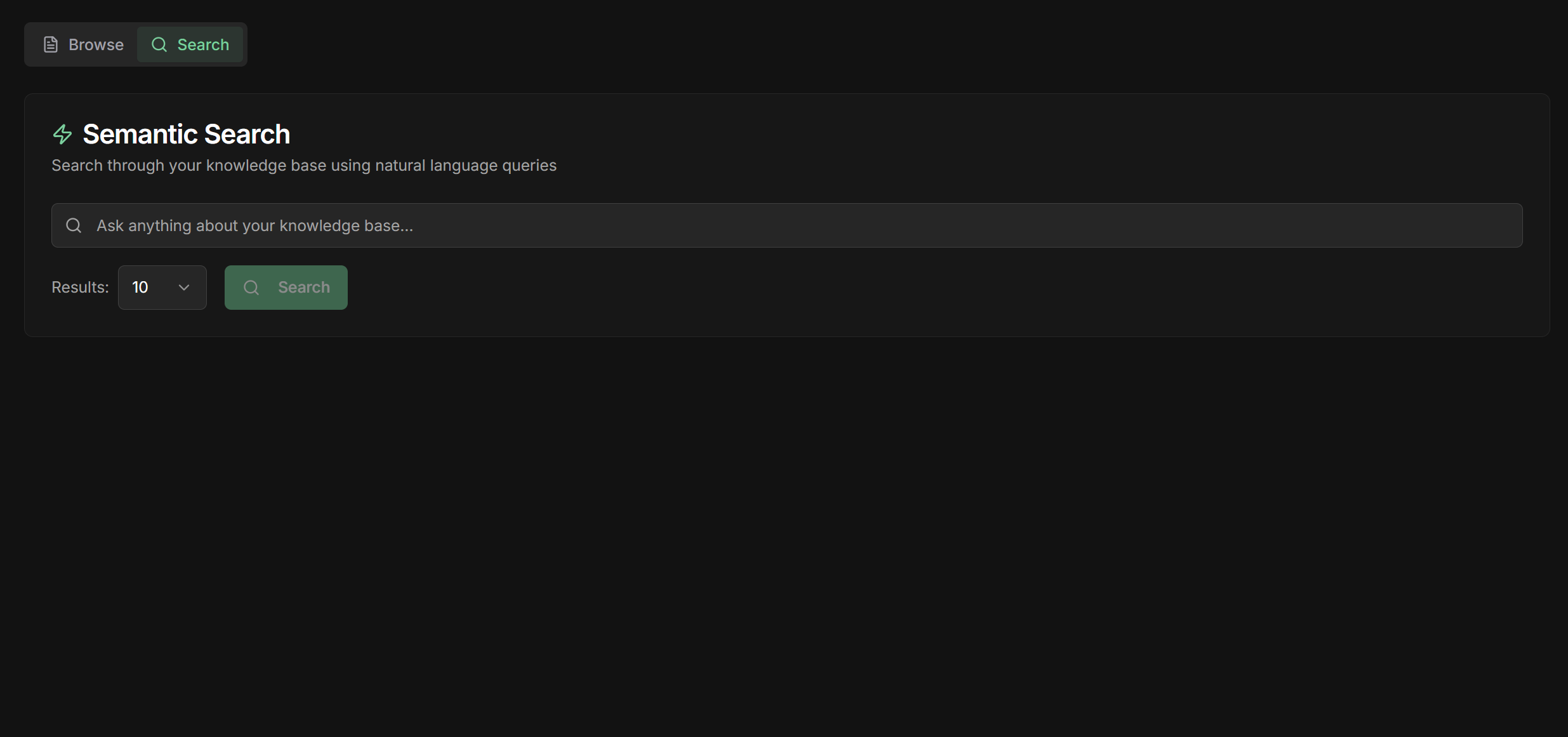
**Search Tab:**
1. After creating content, go to the **"Search"** tab in Knowledge Base
2. **Type a question** related to the content you added
3. **See the results:** System shows most relevant chunks
4. **Check relevance:** Do the results make sense for your question?
**Practical example:**
```
URL: https://company.com/documentation/products
Include Sub-pages: ✅ Yes
Max Sub-pages: 25
Result: System processes main page + up to 25 related pages
automatically (e.g., /products/notebook, /products/smartphone, etc.)
```
**Advantages:**
* Automatic web content updates
* Captures complete documentation structure
* Saves time vs. manual upload
### Step 3: Automatic Tags and Metadata
**How it works:**
* The system **analyzes content** using AI
* **Automatically generates tags** based on main themes
* **You can edit, add or remove** tags as needed
* **Tags help with search** and filters by agents
**Examples of automatic tags:**
```
Document: "iPhone 15 Manual"
Generated tags: smartphone, apple, iphone, manual, setup, usage
Document: "HR Policy - Vacation"
Generated tags: hr, vacation, policy, employees, rights
Document: "Q3 Financial Report"
Generated tags: financial, report, Q3, revenue, expenses, profit
```
**How to customize:**
* ✅ **Keep relevant tags** that facilitate search
* ➕ **Add specific tags** from your business
* ❌ **Remove generic tags** that don't add value
* 🎯 **Use consistent tags** between similar documents
**What is metadata?**
* Extra information about each chunk (piece of content)
* Includes: source, date, file type, size, relevance
* Helps the system find more precise information
**Automatically generated metadata:**
```
Chunk 1 - iPhone Manual (Pages 1-2):
- Source: manual_iphone_15.pdf
- Size: 1.2kb
- Themes: initial setup, first use
- Relevance: high for "how to configure"
Chunk 2 - iPhone Manual (Pages 10-12):
- Source: manual_iphone_15.pdf
- Size: 0.8kb
- Themes: camera, photos, videos
- Relevance: high for "taking photos"
```
**How the system uses it:**
* **Contextual search:** Finds most relevant chunk for each question
* **Smart filtering:** Avoids unnecessary information
* **Ranking:** Prioritizes most useful chunks for the answer
## Testing Your Knowledge Base
### Search and Verification
**Search Tab:**
1. After creating content, go to the **"Search"** tab in Knowledge Base
2. **Type a question** related to the content you added
3. **See the results:** System shows most relevant chunks
4. **Check relevance:** Do the results make sense for your question?
 **Test example:**
```
Added content: Notebook warranty manual
Test question: "How long does the notebook warranty last?"
Expected result: Chunk with information "12 months warranty"
If it doesn't appear: Check if tags include "warranty" and "notebook"
```
**If search isn't good:**
**1. Refine tags:**
* Add synonyms: "warranty" + "coverage" + "protection"
* Use terms that customers actually say
* Avoid overly technical tags
**2. Improve content:**
* Use clear and direct language
* Include common questions in the text
* Add sufficient context in each chunk
**3. Test different questions:**
* Formal question: "What is the warranty period?"
* Casual question: "How long does the notebook have warranty?"
* Specific question: "Notebook with defect, does warranty cover?"
**4. Adjust large chunks:**
* If chunk is too long, divide into smaller themes
* If too small, may lack context
* Ideal: 200-500 words per chunk
## Using Knowledge Base with LLM Agents
### Agent Configuration
**How to connect Knowledge Base to your agent:**
1. **Open agent settings** of your LLM agent
2. **Agent Settings section:** Find the **"Load Knowledge"** option
3. **✅ Activate Load Knowledge:** Check the checkbox
4. **Configure tag filters (optional):** Select specific tags
5. **Save settings**
**What happens when active:**
* Agent automatically receives a tool called `load_knowledge`
* Can search for information in Knowledge Base when needed
* Uses tags to filter relevant content
* Integrates specific knowledge into responses
**Tag configuration:**
```
Sales Agent:
Selected tags: sales, products, prices, warranty
→ Accesses only sales-related content
Support Agent:
Selected tags: support, problems, solutions, tutorials
→ Accesses only technical support content
General Agent:
No tags specified
→ Accesses entire Knowledge Base
```
**Automatic flow:**
1. **Customer asks question:** "What's the warranty on notebook X?"
2. **Agent analyzes:** Identifies need for specific information
3. **Automatic search:** Uses `load_knowledge` tool to find answer
4. **Filter by tags:** If configured, searches only in relevant content
5. **Integrates in response:** Combines found knowledge with LLM reasoning
6. **Final response:** Customer receives precise and updated information
**Practical example:**
```
Customer: "My notebook broke, do I have warranty?"
Agent:
1. 🔍 Automatic search in Knowledge Base
2. 📄 Finds: "12 months warranty for manufacturing defects"
3. 🤖 Processes with LLM: Analyzes situation + policy
4. 💬 Response: "Yes! Your notebooks have 12 months warranty for
manufacturing defects. To use the warranty, you'll need the
invoice and registration form completion. What kind of problem
is happening?"
```
**Advantages:**
* ✅ **Always updated information**
* ✅ **Consistency between agents**
* ✅ **Responses based on real data**
* ✅ **Reduces AI "hallucinations"**
**Why use filters:**
* Avoids irrelevant information in responses
* Improves search speed
* Reduces confusion between different areas
* Allows agent specialization
**Recommended strategies:**
**1. By department:**
```
Sales Agent: sales, products, prices, promotions
HR Agent: hr, employees, policies, benefits
IT Agent: it, systems, passwords, technical-problems
```
**2. By customer type:**
```
B2B Agent: companies, corporate, volumes, contracts
B2C Agent: consumer, retail, individual, simple
```
**3. By product:**
```
Notebook Agent: notebook, laptop, computer, hardware
Smartphone Agent: mobile, smartphone, mobile, apps
```
**4. No filter (general agent):**
```
Supervisor Agent: No tags - full access
Triage Agent: No tags - can direct to specialists
```
## Organizing Your Knowledge Base
### Best Practices
**How to organize multiple knowledge bases:**
**By business area:**
```
📚 Sales KB
- Product catalog
- Pricing policies
- Sales scripts
- Common objections
📚 Support KB
- Technical manuals
- Troubleshooting
- FAQs
- Procedures
📚 HR KB
- Internal policies
- Benefits
- Procedures
- Company culture
```
**By content type:**
```
📚 Official Documents KB
- Standard contracts
- Corporate policies
- Legal procedures
📚 Practical Knowledge KB
- Tutorials
- Success cases
- Tips and tricks
```
**Specialized agents access specific KBs for maximum efficiency.**
**Maintenance strategies:**
**1. Periodic review:**
* Set schedule (monthly/quarterly)
* Check outdated information
* Update prices, policies, products
* Remove obsolete content
**2. Version control:**
* Use descriptive names with dates
* "Product\_Catalog\_2024\_Q1"
* "Warranty\_Policy\_v2\_January2024"
**3. Automatic URLs:**
* For frequently changing sites
* Configure automatic reprocessing
* Monitor if URLs are still active
**4. Area managers:**
* Sales: Updates products and prices
* HR: Updates internal policies
* Support: Updates technical procedures
**Tag standardization:**
**Use consistent categories:**
```
By area: sales, support, hr, financial, marketing
By product: notebook, smartphone, tablet, accessory
By type: policy, manual, tutorial, faq, procedure
By urgency: critical, important, normal, informative
```
**Recommended conventions:**
* **Lowercase:** sales, not Sales
* **Hyphen for compounds:** technical-problem, not technical problem
* **Consistency:** always "smartphone", never mix with "mobile"
* **Hierarchy:** product > product-notebook > product-notebook-gaming
**Practical examples:**
```
Document: "How to replace iPhone screen"
Tags: support, smartphone, iphone, repair, screen, tutorial
Document: "Gaming notebook price table"
Tags: sales, notebook, gaming, prices, table, 2024
```
## Common Use Cases
**Knowledge Base for online store:**
* Complete product catalog
* Return/exchange policies
* Size guides
* Delivery FAQs
**Benefited agents:**
* Sales: Precise recommendations
* Support: Quick resolution
* After-sales: Updated policies
**Knowledge Base for software:**
* Technical documentation
* Usage tutorials
* Common troubleshooting
* Changelog and updates
**Benefited agents:**
* Support: Technical solutions
* Onboarding: Setup guides
* Sales: Features and benefits
**Knowledge Base for consulting:**
* Proprietary methodologies
* Success cases
* Standard proposals
* Expert profiles
**Benefited agents:**
* Sales: Personalized proposals
* Delivery: Consistent execution
* Relationship: Complete history
**Corporate Knowledge Base:**
* HR policies
* Internal procedures
* Systems and passwords
* Culture and values
**Benefited agents:**
* HR: Standardized responses
* IT: Automated support
* Management: Consistent information
## Troubleshooting
**1. Agent doesn't find information:**
* ✅ Check if Load Knowledge is active
* ✅ Confirm tags are configured correctly
* ✅ Test manual search in Search tab
* ✅ Add synonyms in tags
**2. Too generic responses:**
* ✅ Improve KB content quality
* ✅ Add more context in documents
* ✅ Use smaller and more specific chunks
* ✅ Refine tags for greater precision
**3. Upload failed:**
* ✅ Check file size (max 50MB)
* ✅ Confirm supported format
* ✅ Test smaller file first
* ✅ Convert to PDF if necessary
**4. URL doesn't process:**
* ✅ Check if URL is publicly accessible
* ✅ Test URL in browser first
* ✅ Reduce number of sub-pages
* ✅ Wait longer for large sites
**5. Search returns irrelevant results:**
* ✅ Refine tags to be more specific
* ✅ Divide long documents into smaller chunks
* ✅ Use clearer language in content
* ✅ Test different ways to ask the question
## Next Steps
Learn how to configure agents to use your Knowledge Base
Understand all Load Knowledge options
Create specialized agents by knowledge area
Optimize performance and response quality
***
🎓 **Congratulations!** Now you know how to create and manage knowledge bases to make your agents smarter and more precise with your organization-specific information!
**Test example:**
```
Added content: Notebook warranty manual
Test question: "How long does the notebook warranty last?"
Expected result: Chunk with information "12 months warranty"
If it doesn't appear: Check if tags include "warranty" and "notebook"
```
**If search isn't good:**
**1. Refine tags:**
* Add synonyms: "warranty" + "coverage" + "protection"
* Use terms that customers actually say
* Avoid overly technical tags
**2. Improve content:**
* Use clear and direct language
* Include common questions in the text
* Add sufficient context in each chunk
**3. Test different questions:**
* Formal question: "What is the warranty period?"
* Casual question: "How long does the notebook have warranty?"
* Specific question: "Notebook with defect, does warranty cover?"
**4. Adjust large chunks:**
* If chunk is too long, divide into smaller themes
* If too small, may lack context
* Ideal: 200-500 words per chunk
## Using Knowledge Base with LLM Agents
### Agent Configuration
**How to connect Knowledge Base to your agent:**
1. **Open agent settings** of your LLM agent
2. **Agent Settings section:** Find the **"Load Knowledge"** option
3. **✅ Activate Load Knowledge:** Check the checkbox
4. **Configure tag filters (optional):** Select specific tags
5. **Save settings**
**What happens when active:**
* Agent automatically receives a tool called `load_knowledge`
* Can search for information in Knowledge Base when needed
* Uses tags to filter relevant content
* Integrates specific knowledge into responses
**Tag configuration:**
```
Sales Agent:
Selected tags: sales, products, prices, warranty
→ Accesses only sales-related content
Support Agent:
Selected tags: support, problems, solutions, tutorials
→ Accesses only technical support content
General Agent:
No tags specified
→ Accesses entire Knowledge Base
```
**Automatic flow:**
1. **Customer asks question:** "What's the warranty on notebook X?"
2. **Agent analyzes:** Identifies need for specific information
3. **Automatic search:** Uses `load_knowledge` tool to find answer
4. **Filter by tags:** If configured, searches only in relevant content
5. **Integrates in response:** Combines found knowledge with LLM reasoning
6. **Final response:** Customer receives precise and updated information
**Practical example:**
```
Customer: "My notebook broke, do I have warranty?"
Agent:
1. 🔍 Automatic search in Knowledge Base
2. 📄 Finds: "12 months warranty for manufacturing defects"
3. 🤖 Processes with LLM: Analyzes situation + policy
4. 💬 Response: "Yes! Your notebooks have 12 months warranty for
manufacturing defects. To use the warranty, you'll need the
invoice and registration form completion. What kind of problem
is happening?"
```
**Advantages:**
* ✅ **Always updated information**
* ✅ **Consistency between agents**
* ✅ **Responses based on real data**
* ✅ **Reduces AI "hallucinations"**
**Why use filters:**
* Avoids irrelevant information in responses
* Improves search speed
* Reduces confusion between different areas
* Allows agent specialization
**Recommended strategies:**
**1. By department:**
```
Sales Agent: sales, products, prices, promotions
HR Agent: hr, employees, policies, benefits
IT Agent: it, systems, passwords, technical-problems
```
**2. By customer type:**
```
B2B Agent: companies, corporate, volumes, contracts
B2C Agent: consumer, retail, individual, simple
```
**3. By product:**
```
Notebook Agent: notebook, laptop, computer, hardware
Smartphone Agent: mobile, smartphone, mobile, apps
```
**4. No filter (general agent):**
```
Supervisor Agent: No tags - full access
Triage Agent: No tags - can direct to specialists
```
## Organizing Your Knowledge Base
### Best Practices
**How to organize multiple knowledge bases:**
**By business area:**
```
📚 Sales KB
- Product catalog
- Pricing policies
- Sales scripts
- Common objections
📚 Support KB
- Technical manuals
- Troubleshooting
- FAQs
- Procedures
📚 HR KB
- Internal policies
- Benefits
- Procedures
- Company culture
```
**By content type:**
```
📚 Official Documents KB
- Standard contracts
- Corporate policies
- Legal procedures
📚 Practical Knowledge KB
- Tutorials
- Success cases
- Tips and tricks
```
**Specialized agents access specific KBs for maximum efficiency.**
**Maintenance strategies:**
**1. Periodic review:**
* Set schedule (monthly/quarterly)
* Check outdated information
* Update prices, policies, products
* Remove obsolete content
**2. Version control:**
* Use descriptive names with dates
* "Product\_Catalog\_2024\_Q1"
* "Warranty\_Policy\_v2\_January2024"
**3. Automatic URLs:**
* For frequently changing sites
* Configure automatic reprocessing
* Monitor if URLs are still active
**4. Area managers:**
* Sales: Updates products and prices
* HR: Updates internal policies
* Support: Updates technical procedures
**Tag standardization:**
**Use consistent categories:**
```
By area: sales, support, hr, financial, marketing
By product: notebook, smartphone, tablet, accessory
By type: policy, manual, tutorial, faq, procedure
By urgency: critical, important, normal, informative
```
**Recommended conventions:**
* **Lowercase:** sales, not Sales
* **Hyphen for compounds:** technical-problem, not technical problem
* **Consistency:** always "smartphone", never mix with "mobile"
* **Hierarchy:** product > product-notebook > product-notebook-gaming
**Practical examples:**
```
Document: "How to replace iPhone screen"
Tags: support, smartphone, iphone, repair, screen, tutorial
Document: "Gaming notebook price table"
Tags: sales, notebook, gaming, prices, table, 2024
```
## Common Use Cases
**Knowledge Base for online store:**
* Complete product catalog
* Return/exchange policies
* Size guides
* Delivery FAQs
**Benefited agents:**
* Sales: Precise recommendations
* Support: Quick resolution
* After-sales: Updated policies
**Knowledge Base for software:**
* Technical documentation
* Usage tutorials
* Common troubleshooting
* Changelog and updates
**Benefited agents:**
* Support: Technical solutions
* Onboarding: Setup guides
* Sales: Features and benefits
**Knowledge Base for consulting:**
* Proprietary methodologies
* Success cases
* Standard proposals
* Expert profiles
**Benefited agents:**
* Sales: Personalized proposals
* Delivery: Consistent execution
* Relationship: Complete history
**Corporate Knowledge Base:**
* HR policies
* Internal procedures
* Systems and passwords
* Culture and values
**Benefited agents:**
* HR: Standardized responses
* IT: Automated support
* Management: Consistent information
## Troubleshooting
**1. Agent doesn't find information:**
* ✅ Check if Load Knowledge is active
* ✅ Confirm tags are configured correctly
* ✅ Test manual search in Search tab
* ✅ Add synonyms in tags
**2. Too generic responses:**
* ✅ Improve KB content quality
* ✅ Add more context in documents
* ✅ Use smaller and more specific chunks
* ✅ Refine tags for greater precision
**3. Upload failed:**
* ✅ Check file size (max 50MB)
* ✅ Confirm supported format
* ✅ Test smaller file first
* ✅ Convert to PDF if necessary
**4. URL doesn't process:**
* ✅ Check if URL is publicly accessible
* ✅ Test URL in browser first
* ✅ Reduce number of sub-pages
* ✅ Wait longer for large sites
**5. Search returns irrelevant results:**
* ✅ Refine tags to be more specific
* ✅ Divide long documents into smaller chunks
* ✅ Use clearer language in content
* ✅ Test different ways to ask the question
## Next Steps
Learn how to configure agents to use your Knowledge Base
Understand all Load Knowledge options
Create specialized agents by knowledge area
Optimize performance and response quality
***
🎓 **Congratulations!** Now you know how to create and manage knowledge bases to make your agents smarter and more precise with your organization-specific information!