> ## Documentation Index
> Fetch the complete documentation index at: https://docs.evo-ai.co/llms.txt
> Use this file to discover all available pages before exploring further.
# Introduction
> Configure and customize your agents with tools, integrations, and advanced features
## Overview
**Agent Configurations** allow you to customize and extend your agents' capabilities through various integrations and tools. Each configuration offers specific functionality for different needs:
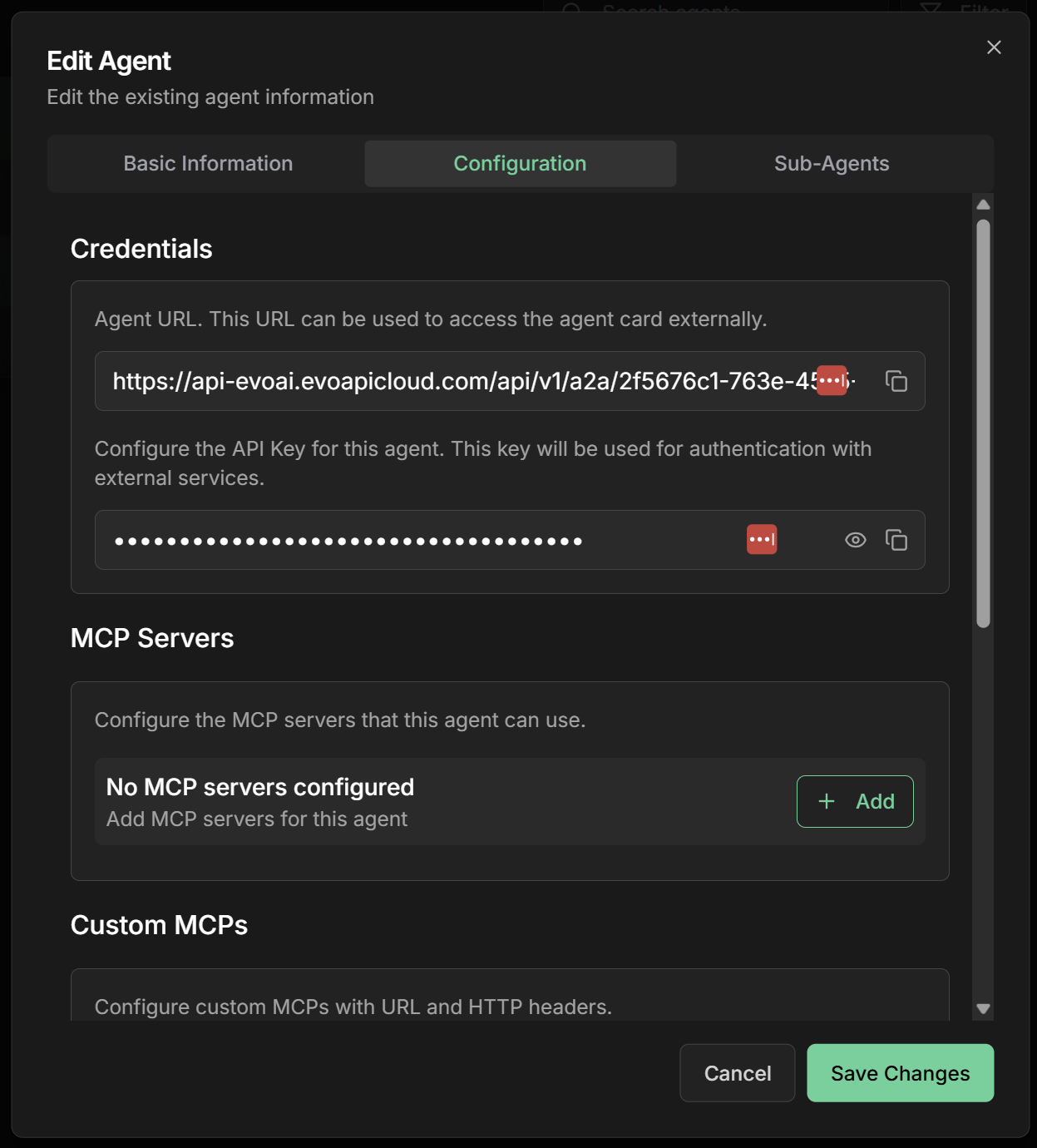 **Accessing Configurations**: To access any agent's configurations, click the settings icon (⚙️) on the agent card and then click **"Edit"**.
## Available Configurations
### Sharing and Access
**Share agents publicly**
Generate public URLs so other users can chat with your agents without authentication. Ideal for demonstrations and team collaboration.
* ✅ Instant public URLs
* ✅ Access without login
* ✅ Visibility control
**Credentials for A2A integration**
Access automatically generated credentials for each agent, enabling integration via Agent 2 Agent (A2A) protocol with external systems.
* ✅ Automatic API Keys
* ✅ Integration URLs
* ✅ A2A Protocol
### Servers and MCP Integrations
**MCP server library**
Connect your agent with MCP servers from Evo AI's curated library. Includes ready-made integrations with various popular services.
* ✅ Curated library
* ✅ Simple configuration
* ✅ Popular services
**External MCP servers**
Configure custom MCP servers hosted externally with SSE support and custom authentication via headers.
* ✅ External servers
* ✅ SSE (Server-Sent Events)
* ✅ Custom headers
### Tools and Agents
**Agents as tools**
Use other created agents as specialized tools, creating hierarchical architectures of orchestrator and specialist agents.
* ✅ Agent reusability
* ✅ Functional specialization
* ✅ Intelligent orchestration
**Custom HTTP tools**
Create custom HTTP tools to integrate any external REST API with complete parameter configuration and authentication.
* ✅ External REST APIs
* ✅ Complete configuration
* ✅ Flexible authentication
## How to Configure
### General Step by Step
1. Go to the **agents screen** in the main dashboard
2. Locate the agent you want to configure
3. Click the **"Settings"** icon (⚙️) on the agent card and then **"Edit"**
4. Click **"Edit"** in the menu that appears
5. You will be directed to the configuration screen
On the configuration screen, you will see all available options:
* **Share Agent** - For public sharing
* **Credentials** - To view A2A credentials
* **MCP Server** - To add servers from the library
* **Custom MCP** - For external servers
* **Agent Tools** - To use other agents
* **Custom Tools** - To create HTTP tools
1. Click **"Add"** in the desired section
2. Fill in the necessary information
3. Configure specific parameters
4. Save the configurations
5. Test the functionality
## Common Use Cases
### Complete Customer Service Agent
**Recommended configurations:**
* **Share Agent** - For public customer access
* **Agent Tools** - Specialists in sales, support, finance
* **Custom Tools** - CRM and ticketing system integration
* **MCP Server** - Email and notification tools
**Result:** Complete customer service agent with specialists and integrations.
### Development Agent
**Recommended configurations:**
* **Agent Tools** - Frontend, backend, DevOps specialists
* **Custom MCP** - CI/CD and monitoring servers
* **Custom Tools** - GitHub, Jira, Slack APIs
* **Credentials** - For IDE integration
**Result:** Architect agent with access to complete development tools.
### Research Agent
**Recommended configurations:**
* **MCP Server** - Search and analysis tools
* **Custom Tools** - Academic APIs and databases
* **Agent Tools** - Analysis and writing specialists
* **Share Agent** - To share with research team
**Result:** Research agent with access to multiple sources and specialists.
## Best Practices
### Configuration Organization
**Organization principles:**
1. **Start simple** - Configure one functionality at a time
2. **Test in isolation** - Validate each configuration before adding others
3. **Document configurations** - Keep record of integrations
4. **Monitor performance** - Track impact of each configuration
5. **Optimize gradually** - Adjust as needed
Start with Share Agent and MCP Server for basic functionality, then add more complex configurations.
### Security and Performance
**Security:**
* 🔐 **Protect API Keys** - Use secure headers
* 🔄 **Renew credentials** regularly
* 📊 **Monitor access** - Track integration usage
* 🛡️ **Validate permissions** - Confirm necessary access
**Performance:**
* ⚡ **Limit integrations** - Don't overload the agent
* 📈 **Monitor latency** - Track response time
* 💰 **Consider costs** - Multiple integrations increase costs
* 🎯 **Optimize usage** - Use only necessary configurations
## Troubleshooting
**Configuration doesn't appear:**
* Check if the agent is active
* Confirm you have adequate permissions
* Reload the configuration page
* Check error logs in console
**Integration doesn't work:**
* Test each configuration in isolation
* Check credentials and API keys
* Confirm network connectivity
* Consult specific configuration documentation
**Slow performance:**
* Reduce number of active configurations
* Optimize timeouts and parameters
* Monitor resource usage
* Consider using specialized agents
**Authentication errors:**
* Check credential validity
* Confirm header format
* Test authentication externally
* Renew tokens if necessary
***
⚙️ **Configurations ready!** Explore each type of configuration to create powerful and customized agents for your specific needs!
**Accessing Configurations**: To access any agent's configurations, click the settings icon (⚙️) on the agent card and then click **"Edit"**.
## Available Configurations
### Sharing and Access
**Share agents publicly**
Generate public URLs so other users can chat with your agents without authentication. Ideal for demonstrations and team collaboration.
* ✅ Instant public URLs
* ✅ Access without login
* ✅ Visibility control
**Credentials for A2A integration**
Access automatically generated credentials for each agent, enabling integration via Agent 2 Agent (A2A) protocol with external systems.
* ✅ Automatic API Keys
* ✅ Integration URLs
* ✅ A2A Protocol
### Servers and MCP Integrations
**MCP server library**
Connect your agent with MCP servers from Evo AI's curated library. Includes ready-made integrations with various popular services.
* ✅ Curated library
* ✅ Simple configuration
* ✅ Popular services
**External MCP servers**
Configure custom MCP servers hosted externally with SSE support and custom authentication via headers.
* ✅ External servers
* ✅ SSE (Server-Sent Events)
* ✅ Custom headers
### Tools and Agents
**Agents as tools**
Use other created agents as specialized tools, creating hierarchical architectures of orchestrator and specialist agents.
* ✅ Agent reusability
* ✅ Functional specialization
* ✅ Intelligent orchestration
**Custom HTTP tools**
Create custom HTTP tools to integrate any external REST API with complete parameter configuration and authentication.
* ✅ External REST APIs
* ✅ Complete configuration
* ✅ Flexible authentication
## How to Configure
### General Step by Step
1. Go to the **agents screen** in the main dashboard
2. Locate the agent you want to configure
3. Click the **"Settings"** icon (⚙️) on the agent card and then **"Edit"**
4. Click **"Edit"** in the menu that appears
5. You will be directed to the configuration screen
On the configuration screen, you will see all available options:
* **Share Agent** - For public sharing
* **Credentials** - To view A2A credentials
* **MCP Server** - To add servers from the library
* **Custom MCP** - For external servers
* **Agent Tools** - To use other agents
* **Custom Tools** - To create HTTP tools
1. Click **"Add"** in the desired section
2. Fill in the necessary information
3. Configure specific parameters
4. Save the configurations
5. Test the functionality
## Common Use Cases
### Complete Customer Service Agent
**Recommended configurations:**
* **Share Agent** - For public customer access
* **Agent Tools** - Specialists in sales, support, finance
* **Custom Tools** - CRM and ticketing system integration
* **MCP Server** - Email and notification tools
**Result:** Complete customer service agent with specialists and integrations.
### Development Agent
**Recommended configurations:**
* **Agent Tools** - Frontend, backend, DevOps specialists
* **Custom MCP** - CI/CD and monitoring servers
* **Custom Tools** - GitHub, Jira, Slack APIs
* **Credentials** - For IDE integration
**Result:** Architect agent with access to complete development tools.
### Research Agent
**Recommended configurations:**
* **MCP Server** - Search and analysis tools
* **Custom Tools** - Academic APIs and databases
* **Agent Tools** - Analysis and writing specialists
* **Share Agent** - To share with research team
**Result:** Research agent with access to multiple sources and specialists.
## Best Practices
### Configuration Organization
**Organization principles:**
1. **Start simple** - Configure one functionality at a time
2. **Test in isolation** - Validate each configuration before adding others
3. **Document configurations** - Keep record of integrations
4. **Monitor performance** - Track impact of each configuration
5. **Optimize gradually** - Adjust as needed
Start with Share Agent and MCP Server for basic functionality, then add more complex configurations.
### Security and Performance
**Security:**
* 🔐 **Protect API Keys** - Use secure headers
* 🔄 **Renew credentials** regularly
* 📊 **Monitor access** - Track integration usage
* 🛡️ **Validate permissions** - Confirm necessary access
**Performance:**
* ⚡ **Limit integrations** - Don't overload the agent
* 📈 **Monitor latency** - Track response time
* 💰 **Consider costs** - Multiple integrations increase costs
* 🎯 **Optimize usage** - Use only necessary configurations
## Troubleshooting
**Configuration doesn't appear:**
* Check if the agent is active
* Confirm you have adequate permissions
* Reload the configuration page
* Check error logs in console
**Integration doesn't work:**
* Test each configuration in isolation
* Check credentials and API keys
* Confirm network connectivity
* Consult specific configuration documentation
**Slow performance:**
* Reduce number of active configurations
* Optimize timeouts and parameters
* Monitor resource usage
* Consider using specialized agents
**Authentication errors:**
* Check credential validity
* Confirm header format
* Test authentication externally
* Renew tokens if necessary
***
⚙️ **Configurations ready!** Explore each type of configuration to create powerful and customized agents for your specific needs!