> ## Documentation Index
> Fetch the complete documentation index at: https://docs.evo-ai.co/llms.txt
> Use this file to discover all available pages before exploring further.
# Chat Interface
> Complete interface to chat with your agents, track real-time executions, and manage chat sessions
## Overview
The **Chat Interface** is where you interact directly with your AI agents. More than a simple conversation, it's a complete tool that allows you to:
* 💬 **Chat** with any created agent
* 🔍 **Track executions** in real-time (debug)
* 📁 **Manage sessions** with intelligent organization
* 🎤 **Send audio, text, and media** for rich interaction
* 🏷️ **Organize conversations** with tags and filters
**Real-Time Debug**: Even in complex agents (Sequential, Workflow, Loop), you see each execution step, function calls, and returns in real-time, facilitating debugging and optimization.
## Navigating the Chat Interface
### Step 1: Accessing Chat
1. In the main Evo AI menu, click **"Chat"**
2. You'll see an interface divided into two parts:
* **Left panel**: List of all chat sessions
* **Main area**: Active chat or initial screen
3. To start, you can create a new chat or open an existing session
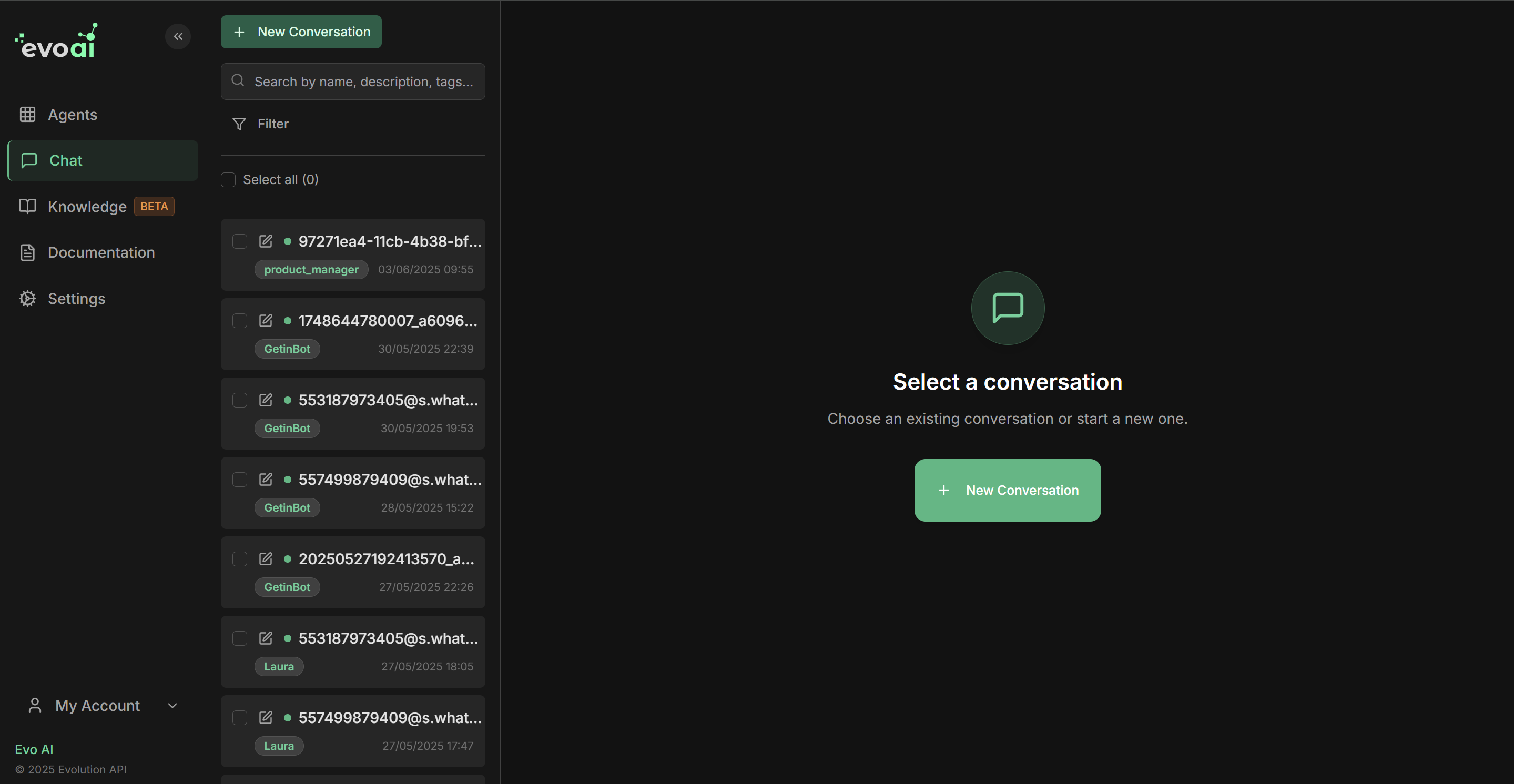 The interface automatically saves all conversations, allowing you to resume any session at any time.
### Step 2: Managing Sessions
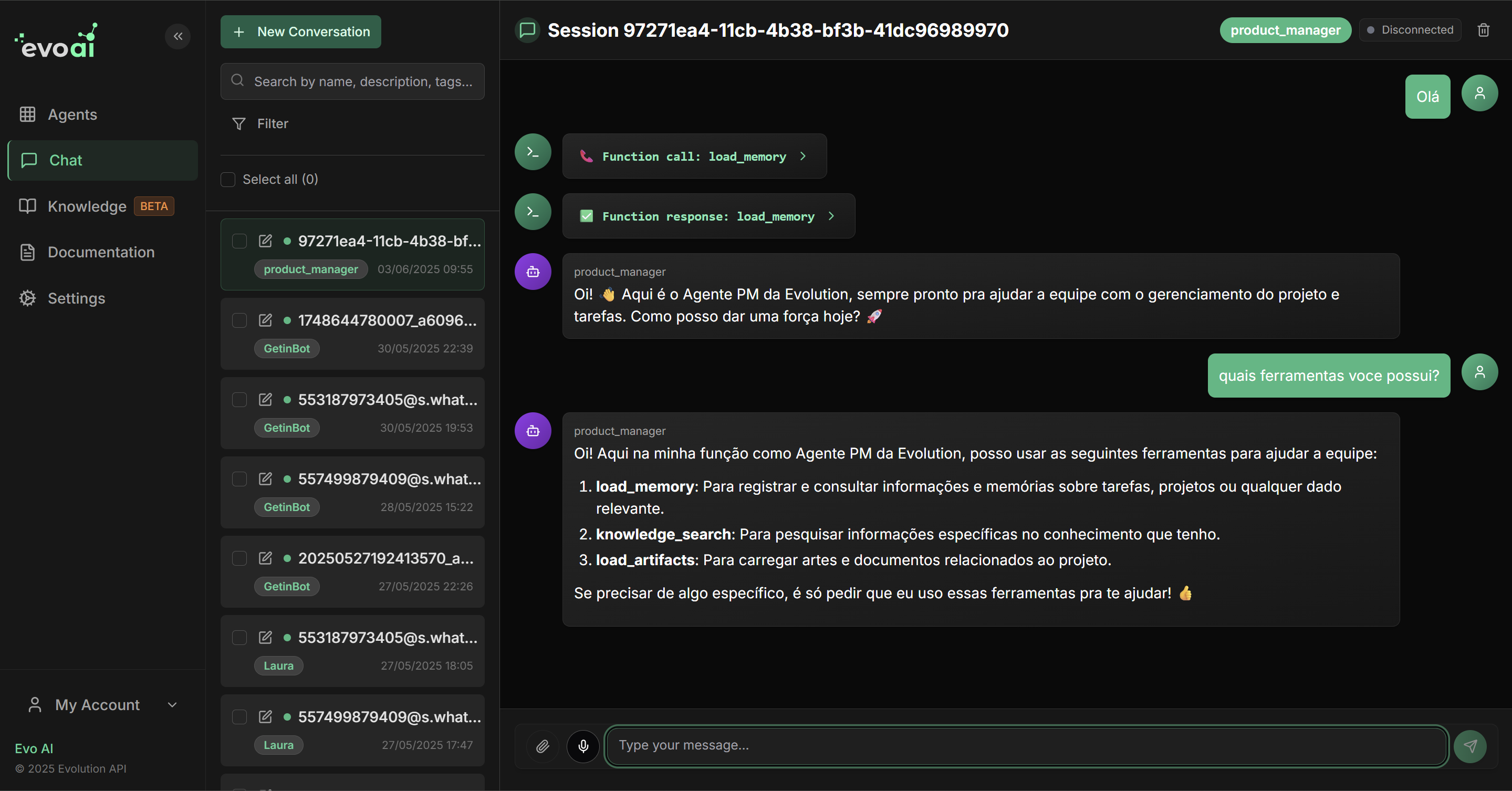
**Left panel - All your conversations:**
Each session shows:
* **Session name** (editable)
* **Agent used**
* **Last message** or summary
* **Conversation date**
* **Tags** for organization
**List functionalities:**
* 🔍 **Quick search** by name, description, or content
* 🏷️ **Filter by tags** to organize by project/type
* 🤖 **Filter by agent** to see specific conversations
* 📅 **Sort** by date, name, or recent activity
* ✅ **Multiple selection** for batch actions
**How to use filters:**
**By Agent:**
```
"Agent" Dropdown: Select specific agent
Result: Shows only conversations with that agent
Example: Filter by "Sales Assistant"
→ Lists only chats with this agent
```
**By Tags:**
```
"Tags" Field: Type specific tag
Result: Shows sessions marked with that tag
Example: Tags "vip-client", "support", "sales"
→ Organization by service category
```
**By Text:**
```
"Search" Field: Type keyword
Result: Searches in names, descriptions, and content
Example: Search for "notebook"
→ Finds all conversations about notebooks
```
**Filter combination:**
* Use multiple filters simultaneously
* Progressively refine results
* Mentally save frequent filters
**How to select multiple sessions:**
1. **Check the checkboxes** next to each desired session
2. **Action bar** appears at the top when there's selection
3. **Select all**: General checkbox to mark all visible
The interface automatically saves all conversations, allowing you to resume any session at any time.
### Step 2: Managing Sessions
**Left panel - All your conversations:**
Each session shows:
* **Session name** (editable)
* **Agent used**
* **Last message** or summary
* **Conversation date**
* **Tags** for organization
**List functionalities:**
* 🔍 **Quick search** by name, description, or content
* 🏷️ **Filter by tags** to organize by project/type
* 🤖 **Filter by agent** to see specific conversations
* 📅 **Sort** by date, name, or recent activity
* ✅ **Multiple selection** for batch actions
**How to use filters:**
**By Agent:**
```
"Agent" Dropdown: Select specific agent
Result: Shows only conversations with that agent
Example: Filter by "Sales Assistant"
→ Lists only chats with this agent
```
**By Tags:**
```
"Tags" Field: Type specific tag
Result: Shows sessions marked with that tag
Example: Tags "vip-client", "support", "sales"
→ Organization by service category
```
**By Text:**
```
"Search" Field: Type keyword
Result: Searches in names, descriptions, and content
Example: Search for "notebook"
→ Finds all conversations about notebooks
```
**Filter combination:**
* Use multiple filters simultaneously
* Progressively refine results
* Mentally save frequent filters
**How to select multiple sessions:**
1. **Check the checkboxes** next to each desired session
2. **Action bar** appears at the top when there's selection
3. **Select all**: General checkbox to mark all visible
 **Available batch actions:**
**🗑️ Delete Selected:**
* Removes multiple sessions at once
* Confirms before permanently deleting
* Useful for periodic cleanup
**🏷️ Add Tags:**
* Applies tags to multiple sessions
* Organizes conversations by project/client
* Facilitates future filters
**📁 Move to Folder:** (if available)
* Organizes into categories
* Separates by client, project, type
**💡 Tip:** Use multiple selection to organize old sessions, apply tags in batch, or clean up test conversations.
### Step 3: Creating New Session
**How to create a new conversation:**
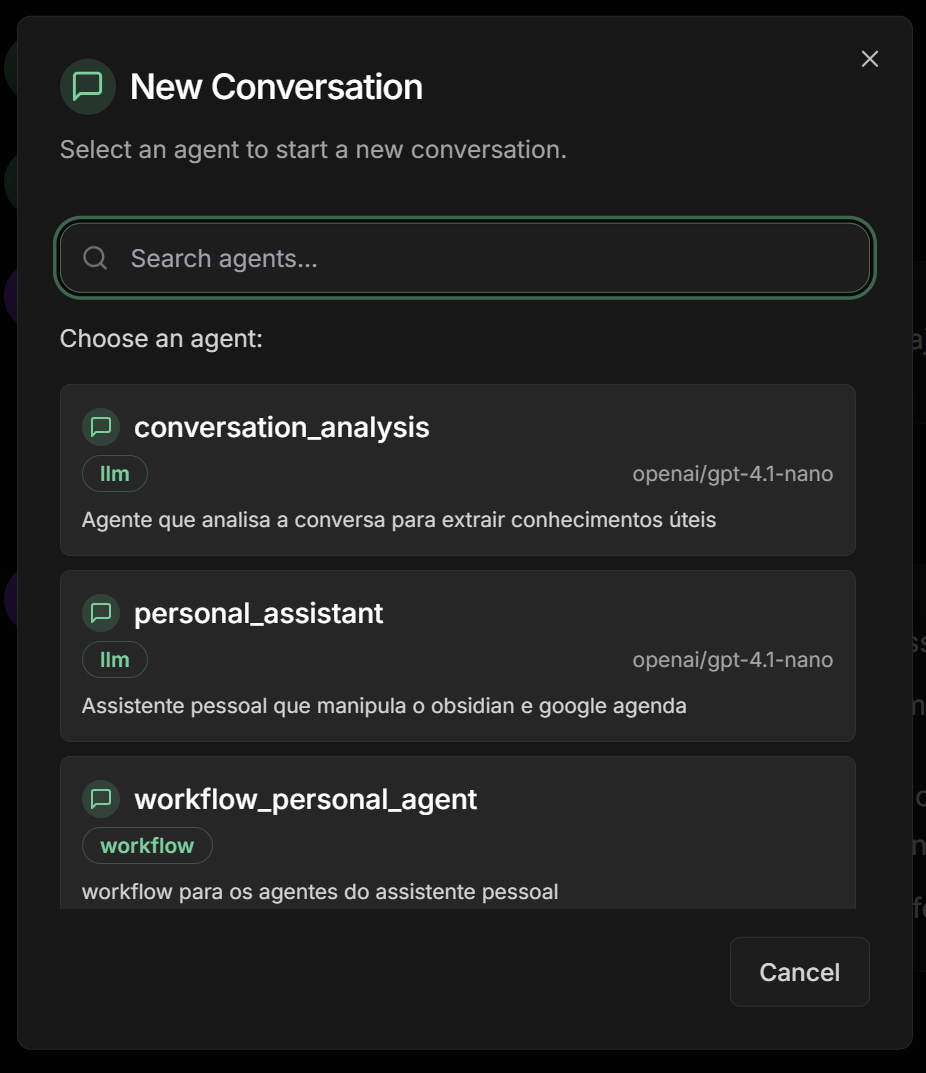
1. Click **"New Chat"** in the left panel
2. **Select the agent** you want to use in the conversation
3. **Configure session name** (optional, can change later)
4. **Add tags** for organization (optional)
5. Click **"Create"** to start
**Available batch actions:**
**🗑️ Delete Selected:**
* Removes multiple sessions at once
* Confirms before permanently deleting
* Useful for periodic cleanup
**🏷️ Add Tags:**
* Applies tags to multiple sessions
* Organizes conversations by project/client
* Facilitates future filters
**📁 Move to Folder:** (if available)
* Organizes into categories
* Separates by client, project, type
**💡 Tip:** Use multiple selection to organize old sessions, apply tags in batch, or clean up test conversations.
### Step 3: Creating New Session
**How to create a new conversation:**
1. Click **"New Chat"** in the left panel
2. **Select the agent** you want to use in the conversation
3. **Configure session name** (optional, can change later)
4. **Add tags** for organization (optional)
5. Click **"Create"** to start
 **Initial settings:**
```
Session Name: "Customer Service John - Notebooks"
Agent: sales_assistant_tech
Tags: client-john, sales, notebook, 2024
Result: Organized chat easy to find later
```
**Best practices for names:**
* Use consistent pattern: "Type - Client - Subject"
* Include date if relevant: "Support-15Jan-LoginProblem"
* Be descriptive: "Demo-Product-Client-ABC"
* Avoid generic names: "Chat 1", "Test"
### Step 4: Editing Session Information
**Accessing edit options:**
1. **In sessions list**: Click the **"Edit"** icon (✏️) next to the session
2. **Or inside chat**: Session options menu
3. **Edit form** opens with editable fields
**Initial settings:**
```
Session Name: "Customer Service John - Notebooks"
Agent: sales_assistant_tech
Tags: client-john, sales, notebook, 2024
Result: Organized chat easy to find later
```
**Best practices for names:**
* Use consistent pattern: "Type - Client - Subject"
* Include date if relevant: "Support-15Jan-LoginProblem"
* Be descriptive: "Demo-Product-Client-ABC"
* Avoid generic names: "Chat 1", "Test"
### Step 4: Editing Session Information
**Accessing edit options:**
1. **In sessions list**: Click the **"Edit"** icon (✏️) next to the session
2. **Or inside chat**: Session options menu
3. **Edit form** opens with editable fields
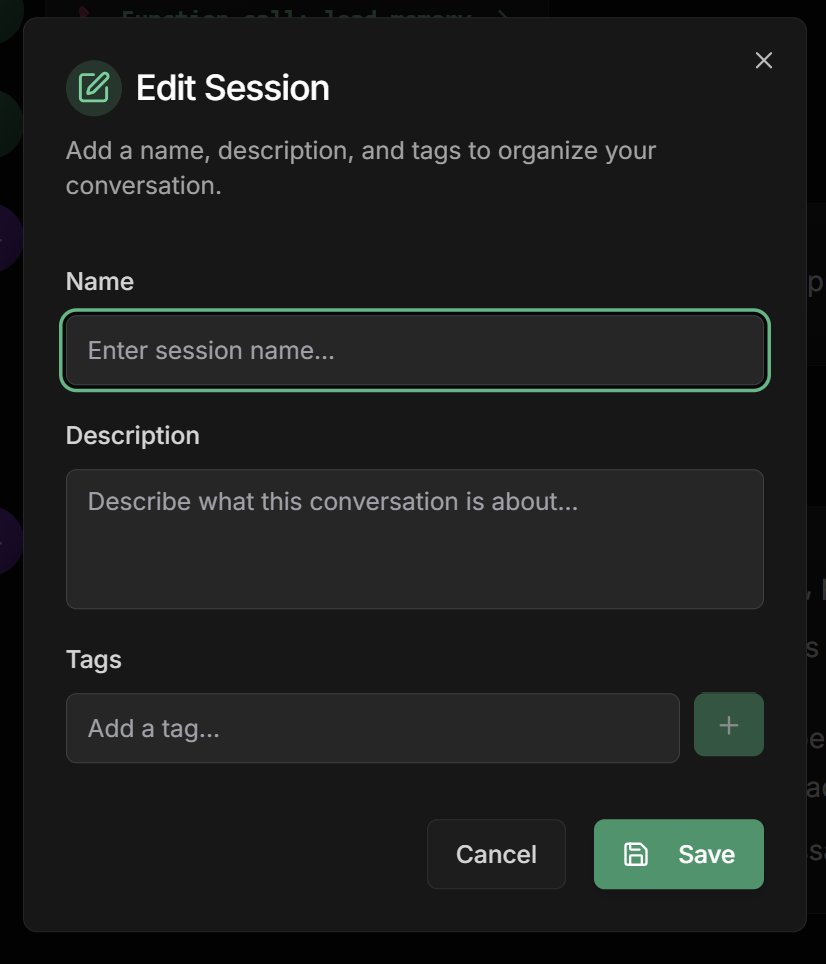 **Editable fields:**
**Session Name:**
* Change to something more descriptive
* Useful when conversation evolved to different subject
* Helps in future searches
**Description:**
* Summary of what was discussed
* Important conversation details
* Results or next steps
**Tags:**
* Add new tags as conversation evolves
* Remove irrelevant tags
* Use status tags: "resolved", "pending", "follow-up"
**Agent:** (if allowed)
* Switch agent during conversation
* Useful to escalate to specialist
**Organization example:**
```
Before: "Chat 1"
After: "Client John - Gaming Notebook Purchase"
Tags: client-john, sales, notebook, gaming, budget-5k
Description: "Client interested in gaming notebook up to $5,000.
Showed interest in model X. Awaiting proposal."
```
## Chatting with Agents
### Input Types
**Most common standard input:**
* Type your message in the text box
* Press **Enter** to send
* **Shift + Enter** for line break
* Supports long text and simple formatting
**Tips for better results:**
```
✅ Be specific: "Need notebook for graphic design, budget $4000"
❌ Too generic: "I want a computer"
✅ Provide context: "I'm a photographer and need to edit 50MB RAW files"
❌ No context: "What's better?"
✅ Include preferences: "Prefer national brands with good warranty"
❌ No direction: "Help me choose"
```
**Attach files and images:**
**Supported formats:**
* 🖼️ **Images**: PNG, JPG, JPEG, GIF, WebP
* 📄 **Documents**: PDF, DOC, DOCX, TXT
* 📊 **Spreadsheets**: XLS, XLSX, CSV
* 🎵 **Audio**: MP3, WAV, M4A, OGG
**How to send:**
1. Click the **"Attach"** icon (📎)
2. **Select file** from your computer
3. **Or drag and drop** directly into chat
4. **Wait for upload** and processing
5. **Add explanatory text** if needed
**Use cases:**
```
📷 Product photo with defect for support
📄 Contract for legal analysis
📊 Data spreadsheet for analysis
🖼️ Design for feedback
```
**Models that support media:**
* GPT-4 Vision: Image analysis
* Gemini Pro Vision: Complete multimodal
* Claude 3: Documents and images
**Voice functionality:**
**How to record:**
1. Click the **"Microphone"** icon (🎤)
2. **Allow access** to microphone if requested
3. **Speak your message** - indicator shows active recording
4. **Click again** to stop recording
5. **Audio is sent** automatically
**⚠️ Important - For audio to work:**
**Option 1: Model that accepts audio**
```
Use native models with audio support:
- Whisper (OpenAI) - specialized in transcription
- Gemini Pro - multimodal with audio
- Provider-specific models
```
**Option 2: Speech to Text Tool**
```
Configure speech_to_text tool in agent:
1. Go to LLM agent settings
2. "Tools" section → Add "Speech to Text"
3. Configure provider (OpenAI, Groq, Google)
4. Agent converts audio → text → processes
```
**Audio quality:**
* Silent environment for better transcription
* Speak clearly and at normal pace
* Avoid background noise
* Test with short phrases first
**Use cases:**
```
🎤 Report detailed problem by voice
🗣️ Make complex request by speaking
🎙️ Interview or feedback collection
📞 Simulate phone service
```
### Debug and Real-Time Tracking
**Chat as debug tool:**
The chat interface isn't just for talking - it's a **complete debug tool** that shows everything happening "behind the scenes" of agent execution.
**What you see in real-time:**
* 🔄 **Each execution step** in Sequential agents
* 🌐 **Calls to APIs** and external tools
* 🤖 **LLM decisions** and reasoning
* ⚙️ **Workflow execution** step by step
* 🔁 **Loop Agent iterations**
* 📞 **Function calls** and returns
* ⏱️ **Execution times** of each stage
**Following sequential execution:**
**Example: Sales agent with 3 sub-agents**
```
🚀 Starting execution...
📍 Step 1: Lead Qualifier
├── Analyzing customer needs...
├── Identifying budget: $5,000
├── Detecting urgency: Medium
└── ✅ Qualification completed
📍 Step 2: Product Demonstrator
├── Consulting product database...
├── Filtering by budget $5,000
├── Selecting 3 suitable options
└── ✅ Demonstration completed
📍 Step 3: Closing Specialist
├── Analyzing qualification data
├── Creating personalized proposal
├── Adding sense of urgency
└── ✅ Final proposal generated
🎯 Execution completed in 8.2s
```
**Visible information:**
* Status of each sub-agent
* Time spent on each stage
* Data passed between agents
* Errors or failures (if any)
**Following complex flows:**
**Example: Proposal approval workflow**
```
🔄 Workflow: Proposal Analysis
🟦 Node: Receive Data
├── Input: Commercial proposal received
├── Validating format...
└── ✅ Valid data
🟦 Node: Reviewer Agent
├── Executing content analysis...
├── Checking values and terms...
├── Quality score: 8.5/10
└── ✅ Review approved
🔷 Node: Condition (Score > 8.0?)
├── Evaluating: 8.5 > 8.0
├── Result: TRUE
└── ➡️ Proceeding to approval
🟦 Node: Automatic Approval
├── Generating final contract...
├── Applying templates...
└── ✅ Contract generated
⏸️ Node: Delay (5 seconds)
├── Waiting for processing...
└── ✅ Delay completed
💬 Node: Final Message
└── ✅ "Proposal approved and contract sent!"
```
**Details shown:**
* Type of each node (Agent, Condition, Message, Delay)
* Data flowing between nodes
* Conditional decisions
* Delay times
* Errors at any point
**Following iterations:**
**Example: Content refinement loop**
```
🔁 Loop Agent: Content Refiner
=== ITERATION 1 ===
📝 Generator: Creating initial content
├── Based on user request
├── Generating first version...
└── ✅ Content v1 created
📊 Analyzer: Evaluating quality
├── Clarity score: 6.5/10
├── Persuasion score: 7.0/10
├── Overall score: 6.8/10
└── ❌ Below threshold (8.0)
=== ITERATION 2 ===
📝 Generator: Refining content
├── Applying analysis feedback
├── Improving clarity...
└── ✅ Content v2 created
📊 Analyzer: Re-evaluating
├── Clarity score: 8.2/10
├── Persuasion score: 8.5/10
├── Overall score: 8.4/10
└── ✅ Above threshold!
🛑 Checker: Using exit_loop()
└── ✅ Loop finished
📋 Finalizer: Generating final response
└── ✅ Result consolidated
```
**Complete visibility:**
* Current iteration number
* Progress of each sub-agent
* Quality metrics
* Stop conditions
* Exact moment of exit\_loop
**Monitoring tools and APIs:**
**Example: Agent using external tools**
```
🔧 Function Call: load_knowledge
├── Parameters: {"query": "notebook warranty", "tags": ["support"]}
├── Searching knowledge base...
├── Result: 3 chunks found
└── ✅ Knowledge loaded
🔧 Function Call: get_product_info
├── Parameters: {"product_id": "NB001", "include_price": true}
├── Consulting products API...
├── Status: 200 OK
├── Data: {"name": "Notebook Pro", "price": 4500, "stock": 12}
└── ✅ Product found
🔧 Function Call: send_email
├── Parameters: {"to": "client@email.com", "subject": "Proposal"}
├── Connecting to SMTP server...
├── Status: Email sent
└── ✅ Communication completed
```
**Detailed information:**
* Name of called function
* Sent parameters
* Execution status
* Returned data
* Response time
* Errors (if any)
**Debugging advantages:**
* Identifies performance bottlenecks
* Detects integration failures
* Validates sent parameters
* Confirms expected returns
## Advanced Session Management
### Organization and Productivity
**Organization strategies:**
**By client:**
```
client-john, client-company-abc, client-vip
→ Facilitates finding specific conversations
```
**By service type:**
```
sales, support, onboarding, demo, follow-up
→ Organizes by activity category
```
**By status:**
```
pending, resolved, awaiting-client, escalated
→ Controls service workflow
```
**By product/service:**
```
notebook, smartphone, software, consulting
→ Segments by business area
```
**By priority:**
```
urgent, high, medium, low
→ Prioritizes service
```
**Useful combinations:**
```
Example: "client-vip + sales + notebook + urgent"
→ VIP client with urgent notebook demand
```
**Efficient search techniques:**
**Content search:**
```
Type keywords of what was discussed:
"login problem", "budget 5000", "warranty"
```
**Results search:**
```
"proposal sent", "problem resolved", "purchase completed"
```
**Date search:**
```
Use date filters for specific period
"last week", "December 2024"
```
**Filter combination:**
```
Agent: sales_assistant
Tag: client-vip
Search: "gaming notebook"
→ VIP conversations about gaming notebooks
```
**Extracting insights from conversations:**
**Service patterns:**
* Which agents are most used?
* What types of questions are most common?
* What time has highest activity?
**Agent performance:**
* Conversations that generated sales
* Successfully resolved problems
* Average resolution time
**Client evolution:**
* Complete interaction history
* Preferences identified over time
* Products or services of interest
**Opportunities:**
* Clients with unexplored potential
* Recurring problems to improve
* Agents that need adjustments
## Best Practices
**For better results:**
**Preparation:**
* Choose the right agent for each conversation type
* Configure descriptive name and tags from the start
* Have clear context of what you want to achieve
**During conversation:**
* Be specific and provide adequate context
* Use media when appropriate (images, documents)
* Follow debug to understand reasoning
* Ask follow-up questions to deepen
**After conversation:**
* Update tags based on what was discussed
* Add description summarizing results
* Mark status (resolved, pending, etc.)
* Document next steps if necessary
**Important precautions:**
**Sensitive information:**
* Avoid sharing unnecessary personal data
* Use codes or initials when possible
* Consider privacy implications
**Secure organization:**
* Use tags that don't expose confidential information
* Be judicious with session names
* Periodically clean old conversations
* Configure appropriate data retention
**Backup and continuity:**
* Export important conversations if necessary
* Document valuable insights externally
* Maintain history of important decisions
**Sharing knowledge:**
**Standardization:**
* Use consistent naming conventions
* Define tag patterns for the team
* Document organization best practices
**Collaboration:**
* Share relevant sessions when appropriate
* Use status tags for coordination
* Document learnings for reuse
**Training:**
* Use example conversations to train new users
* Analyze successful conversations to replicate
* Identify success patterns
## Troubleshooting
**1. Audio doesn't work:**
* ✅ Check microphone permissions in browser
* ✅ Configure speech\_to\_text tool in agent if model doesn't support native audio
* ✅ Test with short phrase first
* ✅ Check if speech\_to\_text provider is configured
**2. Media upload fails:**
* ✅ Check file size (limits by type)
* ✅ Confirm supported format
* ✅ Test internet connection
* ✅ Try smaller file to test
**3. Agent doesn't respond as expected:**
* ✅ Use debug functionality to understand execution
* ✅ Check if agent is configured correctly
* ✅ Be more specific in question
* ✅ Provide more context about what you need
**4. Search doesn't find conversations:**
* ✅ Try different keywords
* ✅ Check active filters
* ✅ Use tags instead of text search
* ✅ Adjust date period if applicable
**5. Slow performance:**
* ✅ Limit number of loaded sessions
* ✅ Use filters to reduce list
* ✅ Clean up old sessions
* ✅ Check internet connection
## Next Steps
Create and configure agents for your conversations
Configure knowledge base for more precise agents
Understand debugging of complex workflows
Configure tools and integrations
***
💬 **Now you master the chat interface!** Use these features to have productive conversations, debug complex agents, and organize your history efficiently!
**Editable fields:**
**Session Name:**
* Change to something more descriptive
* Useful when conversation evolved to different subject
* Helps in future searches
**Description:**
* Summary of what was discussed
* Important conversation details
* Results or next steps
**Tags:**
* Add new tags as conversation evolves
* Remove irrelevant tags
* Use status tags: "resolved", "pending", "follow-up"
**Agent:** (if allowed)
* Switch agent during conversation
* Useful to escalate to specialist
**Organization example:**
```
Before: "Chat 1"
After: "Client John - Gaming Notebook Purchase"
Tags: client-john, sales, notebook, gaming, budget-5k
Description: "Client interested in gaming notebook up to $5,000.
Showed interest in model X. Awaiting proposal."
```
## Chatting with Agents
### Input Types
**Most common standard input:**
* Type your message in the text box
* Press **Enter** to send
* **Shift + Enter** for line break
* Supports long text and simple formatting
**Tips for better results:**
```
✅ Be specific: "Need notebook for graphic design, budget $4000"
❌ Too generic: "I want a computer"
✅ Provide context: "I'm a photographer and need to edit 50MB RAW files"
❌ No context: "What's better?"
✅ Include preferences: "Prefer national brands with good warranty"
❌ No direction: "Help me choose"
```
**Attach files and images:**
**Supported formats:**
* 🖼️ **Images**: PNG, JPG, JPEG, GIF, WebP
* 📄 **Documents**: PDF, DOC, DOCX, TXT
* 📊 **Spreadsheets**: XLS, XLSX, CSV
* 🎵 **Audio**: MP3, WAV, M4A, OGG
**How to send:**
1. Click the **"Attach"** icon (📎)
2. **Select file** from your computer
3. **Or drag and drop** directly into chat
4. **Wait for upload** and processing
5. **Add explanatory text** if needed
**Use cases:**
```
📷 Product photo with defect for support
📄 Contract for legal analysis
📊 Data spreadsheet for analysis
🖼️ Design for feedback
```
**Models that support media:**
* GPT-4 Vision: Image analysis
* Gemini Pro Vision: Complete multimodal
* Claude 3: Documents and images
**Voice functionality:**
**How to record:**
1. Click the **"Microphone"** icon (🎤)
2. **Allow access** to microphone if requested
3. **Speak your message** - indicator shows active recording
4. **Click again** to stop recording
5. **Audio is sent** automatically
**⚠️ Important - For audio to work:**
**Option 1: Model that accepts audio**
```
Use native models with audio support:
- Whisper (OpenAI) - specialized in transcription
- Gemini Pro - multimodal with audio
- Provider-specific models
```
**Option 2: Speech to Text Tool**
```
Configure speech_to_text tool in agent:
1. Go to LLM agent settings
2. "Tools" section → Add "Speech to Text"
3. Configure provider (OpenAI, Groq, Google)
4. Agent converts audio → text → processes
```
**Audio quality:**
* Silent environment for better transcription
* Speak clearly and at normal pace
* Avoid background noise
* Test with short phrases first
**Use cases:**
```
🎤 Report detailed problem by voice
🗣️ Make complex request by speaking
🎙️ Interview or feedback collection
📞 Simulate phone service
```
### Debug and Real-Time Tracking
**Chat as debug tool:**
The chat interface isn't just for talking - it's a **complete debug tool** that shows everything happening "behind the scenes" of agent execution.
**What you see in real-time:**
* 🔄 **Each execution step** in Sequential agents
* 🌐 **Calls to APIs** and external tools
* 🤖 **LLM decisions** and reasoning
* ⚙️ **Workflow execution** step by step
* 🔁 **Loop Agent iterations**
* 📞 **Function calls** and returns
* ⏱️ **Execution times** of each stage
**Following sequential execution:**
**Example: Sales agent with 3 sub-agents**
```
🚀 Starting execution...
📍 Step 1: Lead Qualifier
├── Analyzing customer needs...
├── Identifying budget: $5,000
├── Detecting urgency: Medium
└── ✅ Qualification completed
📍 Step 2: Product Demonstrator
├── Consulting product database...
├── Filtering by budget $5,000
├── Selecting 3 suitable options
└── ✅ Demonstration completed
📍 Step 3: Closing Specialist
├── Analyzing qualification data
├── Creating personalized proposal
├── Adding sense of urgency
└── ✅ Final proposal generated
🎯 Execution completed in 8.2s
```
**Visible information:**
* Status of each sub-agent
* Time spent on each stage
* Data passed between agents
* Errors or failures (if any)
**Following complex flows:**
**Example: Proposal approval workflow**
```
🔄 Workflow: Proposal Analysis
🟦 Node: Receive Data
├── Input: Commercial proposal received
├── Validating format...
└── ✅ Valid data
🟦 Node: Reviewer Agent
├── Executing content analysis...
├── Checking values and terms...
├── Quality score: 8.5/10
└── ✅ Review approved
🔷 Node: Condition (Score > 8.0?)
├── Evaluating: 8.5 > 8.0
├── Result: TRUE
└── ➡️ Proceeding to approval
🟦 Node: Automatic Approval
├── Generating final contract...
├── Applying templates...
└── ✅ Contract generated
⏸️ Node: Delay (5 seconds)
├── Waiting for processing...
└── ✅ Delay completed
💬 Node: Final Message
└── ✅ "Proposal approved and contract sent!"
```
**Details shown:**
* Type of each node (Agent, Condition, Message, Delay)
* Data flowing between nodes
* Conditional decisions
* Delay times
* Errors at any point
**Following iterations:**
**Example: Content refinement loop**
```
🔁 Loop Agent: Content Refiner
=== ITERATION 1 ===
📝 Generator: Creating initial content
├── Based on user request
├── Generating first version...
└── ✅ Content v1 created
📊 Analyzer: Evaluating quality
├── Clarity score: 6.5/10
├── Persuasion score: 7.0/10
├── Overall score: 6.8/10
└── ❌ Below threshold (8.0)
=== ITERATION 2 ===
📝 Generator: Refining content
├── Applying analysis feedback
├── Improving clarity...
└── ✅ Content v2 created
📊 Analyzer: Re-evaluating
├── Clarity score: 8.2/10
├── Persuasion score: 8.5/10
├── Overall score: 8.4/10
└── ✅ Above threshold!
🛑 Checker: Using exit_loop()
└── ✅ Loop finished
📋 Finalizer: Generating final response
└── ✅ Result consolidated
```
**Complete visibility:**
* Current iteration number
* Progress of each sub-agent
* Quality metrics
* Stop conditions
* Exact moment of exit\_loop
**Monitoring tools and APIs:**
**Example: Agent using external tools**
```
🔧 Function Call: load_knowledge
├── Parameters: {"query": "notebook warranty", "tags": ["support"]}
├── Searching knowledge base...
├── Result: 3 chunks found
└── ✅ Knowledge loaded
🔧 Function Call: get_product_info
├── Parameters: {"product_id": "NB001", "include_price": true}
├── Consulting products API...
├── Status: 200 OK
├── Data: {"name": "Notebook Pro", "price": 4500, "stock": 12}
└── ✅ Product found
🔧 Function Call: send_email
├── Parameters: {"to": "client@email.com", "subject": "Proposal"}
├── Connecting to SMTP server...
├── Status: Email sent
└── ✅ Communication completed
```
**Detailed information:**
* Name of called function
* Sent parameters
* Execution status
* Returned data
* Response time
* Errors (if any)
**Debugging advantages:**
* Identifies performance bottlenecks
* Detects integration failures
* Validates sent parameters
* Confirms expected returns
## Advanced Session Management
### Organization and Productivity
**Organization strategies:**
**By client:**
```
client-john, client-company-abc, client-vip
→ Facilitates finding specific conversations
```
**By service type:**
```
sales, support, onboarding, demo, follow-up
→ Organizes by activity category
```
**By status:**
```
pending, resolved, awaiting-client, escalated
→ Controls service workflow
```
**By product/service:**
```
notebook, smartphone, software, consulting
→ Segments by business area
```
**By priority:**
```
urgent, high, medium, low
→ Prioritizes service
```
**Useful combinations:**
```
Example: "client-vip + sales + notebook + urgent"
→ VIP client with urgent notebook demand
```
**Efficient search techniques:**
**Content search:**
```
Type keywords of what was discussed:
"login problem", "budget 5000", "warranty"
```
**Results search:**
```
"proposal sent", "problem resolved", "purchase completed"
```
**Date search:**
```
Use date filters for specific period
"last week", "December 2024"
```
**Filter combination:**
```
Agent: sales_assistant
Tag: client-vip
Search: "gaming notebook"
→ VIP conversations about gaming notebooks
```
**Extracting insights from conversations:**
**Service patterns:**
* Which agents are most used?
* What types of questions are most common?
* What time has highest activity?
**Agent performance:**
* Conversations that generated sales
* Successfully resolved problems
* Average resolution time
**Client evolution:**
* Complete interaction history
* Preferences identified over time
* Products or services of interest
**Opportunities:**
* Clients with unexplored potential
* Recurring problems to improve
* Agents that need adjustments
## Best Practices
**For better results:**
**Preparation:**
* Choose the right agent for each conversation type
* Configure descriptive name and tags from the start
* Have clear context of what you want to achieve
**During conversation:**
* Be specific and provide adequate context
* Use media when appropriate (images, documents)
* Follow debug to understand reasoning
* Ask follow-up questions to deepen
**After conversation:**
* Update tags based on what was discussed
* Add description summarizing results
* Mark status (resolved, pending, etc.)
* Document next steps if necessary
**Important precautions:**
**Sensitive information:**
* Avoid sharing unnecessary personal data
* Use codes or initials when possible
* Consider privacy implications
**Secure organization:**
* Use tags that don't expose confidential information
* Be judicious with session names
* Periodically clean old conversations
* Configure appropriate data retention
**Backup and continuity:**
* Export important conversations if necessary
* Document valuable insights externally
* Maintain history of important decisions
**Sharing knowledge:**
**Standardization:**
* Use consistent naming conventions
* Define tag patterns for the team
* Document organization best practices
**Collaboration:**
* Share relevant sessions when appropriate
* Use status tags for coordination
* Document learnings for reuse
**Training:**
* Use example conversations to train new users
* Analyze successful conversations to replicate
* Identify success patterns
## Troubleshooting
**1. Audio doesn't work:**
* ✅ Check microphone permissions in browser
* ✅ Configure speech\_to\_text tool in agent if model doesn't support native audio
* ✅ Test with short phrase first
* ✅ Check if speech\_to\_text provider is configured
**2. Media upload fails:**
* ✅ Check file size (limits by type)
* ✅ Confirm supported format
* ✅ Test internet connection
* ✅ Try smaller file to test
**3. Agent doesn't respond as expected:**
* ✅ Use debug functionality to understand execution
* ✅ Check if agent is configured correctly
* ✅ Be more specific in question
* ✅ Provide more context about what you need
**4. Search doesn't find conversations:**
* ✅ Try different keywords
* ✅ Check active filters
* ✅ Use tags instead of text search
* ✅ Adjust date period if applicable
**5. Slow performance:**
* ✅ Limit number of loaded sessions
* ✅ Use filters to reduce list
* ✅ Clean up old sessions
* ✅ Check internet connection
## Next Steps
Create and configure agents for your conversations
Configure knowledge base for more precise agents
Understand debugging of complex workflows
Configure tools and integrations
***
💬 **Now you master the chat interface!** Use these features to have productive conversations, debug complex agents, and organize your history efficiently!