> ## Documentation Index
> Fetch the complete documentation index at: https://docs.evo-ai.co/llms.txt
> Use this file to discover all available pages before exploring further.
# LLM Agent
> Understand how LLM agents work and how to configure them for different use cases
## Overview
The **LLM Agent** is the central component of Evo AI, acting as the "thinking" part of your application. It leverages the power of a Large Language Model (LLM) for reasoning, natural language understanding, decision making, response generation, and interaction with tools.
Unlike deterministic workflow agents that follow predefined execution paths, the `LLM Agent` behavior is non-deterministic. It uses the LLM to interpret instructions and context, dynamically deciding how to proceed, which tools to use (if any), or whether to transfer control to another agent.
**Based on Google ADK**: This implementation follows the standards established by the [Google Agent Development Kit](https://google.github.io/adk-docs/agents/llm-agents/), ensuring compatibility and best practices.
## Key Features
Uses LLMs for contextual interpretation and intelligent decision making
Integrates with APIs, databases, and external services through tools
Maintains context in long and complex conversations
Adapts to different scenarios without reprogramming
## Creating Your First LLM Agent
### Step-by-Step Platform Guide
Let's create a complete LLM agent using the Evo AI interface:
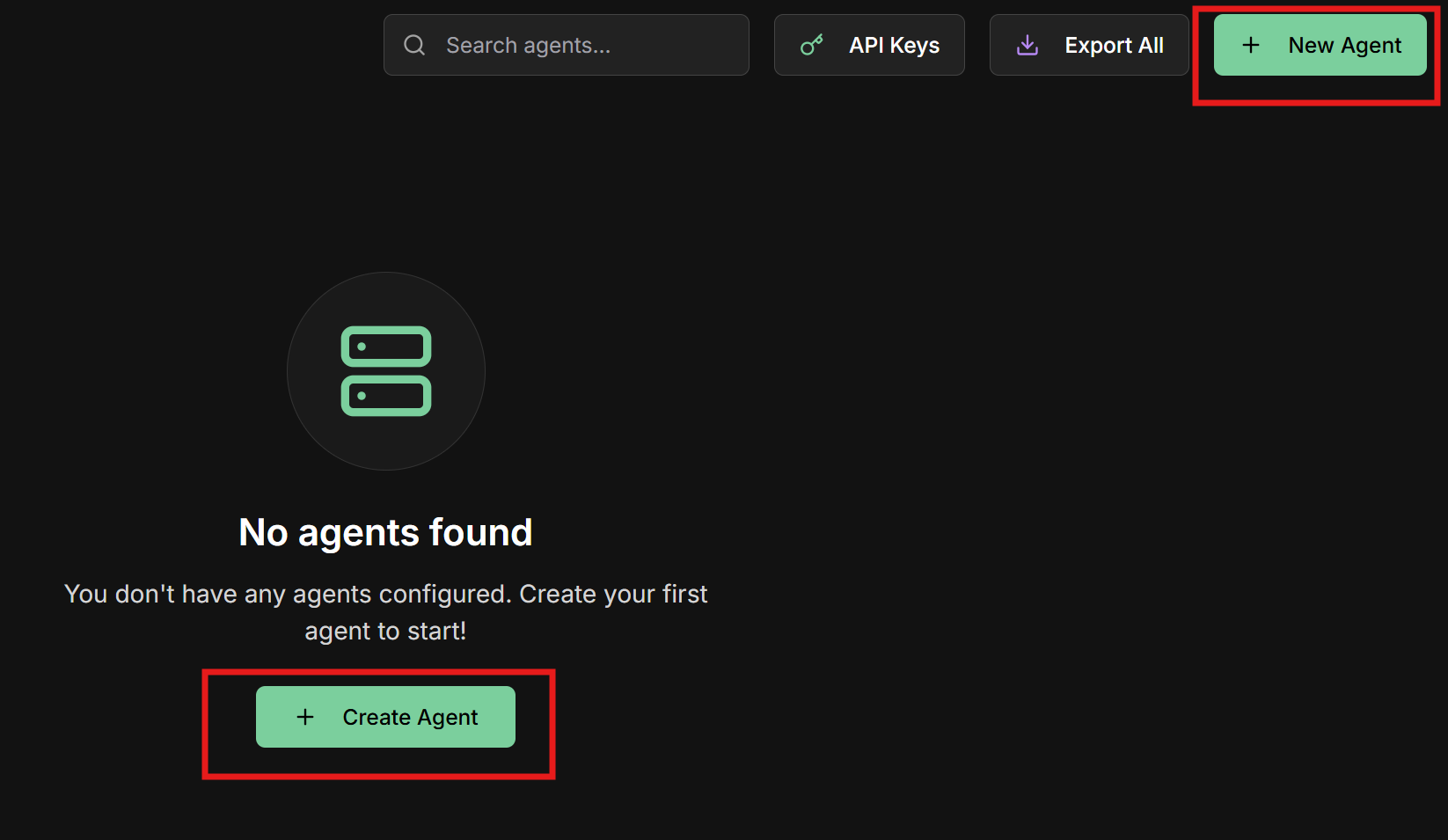
1. On the Evo AI main screen, click **"New Agent"**
2. You will be directed to the creation form
 **Type:** Select **"LLM Agent"**
**Name:** Unique and descriptive name
```
Example: tech_sales_assistant
```
**Description:** Summary of capabilities (used by other agents)
```
Example: Specialist in technology product sales,
focusing on laptops, smartphones, and accessories
```
**Role:** Specific role the agent will perform
```
Example: Technology sales consultant specialist
```
**Goal:** Main and measurable objective
```
Example: Help customers find technology products
suitable for their needs and budget, maximizing
satisfaction and sales conversion
```
**Type:** Select **"LLM Agent"**
**Name:** Unique and descriptive name
```
Example: tech_sales_assistant
```
**Description:** Summary of capabilities (used by other agents)
```
Example: Specialist in technology product sales,
focusing on laptops, smartphones, and accessories
```
**Role:** Specific role the agent will perform
```
Example: Technology sales consultant specialist
```
**Goal:** Main and measurable objective
```
Example: Help customers find technology products
suitable for their needs and budget, maximizing
satisfaction and sales conversion
```
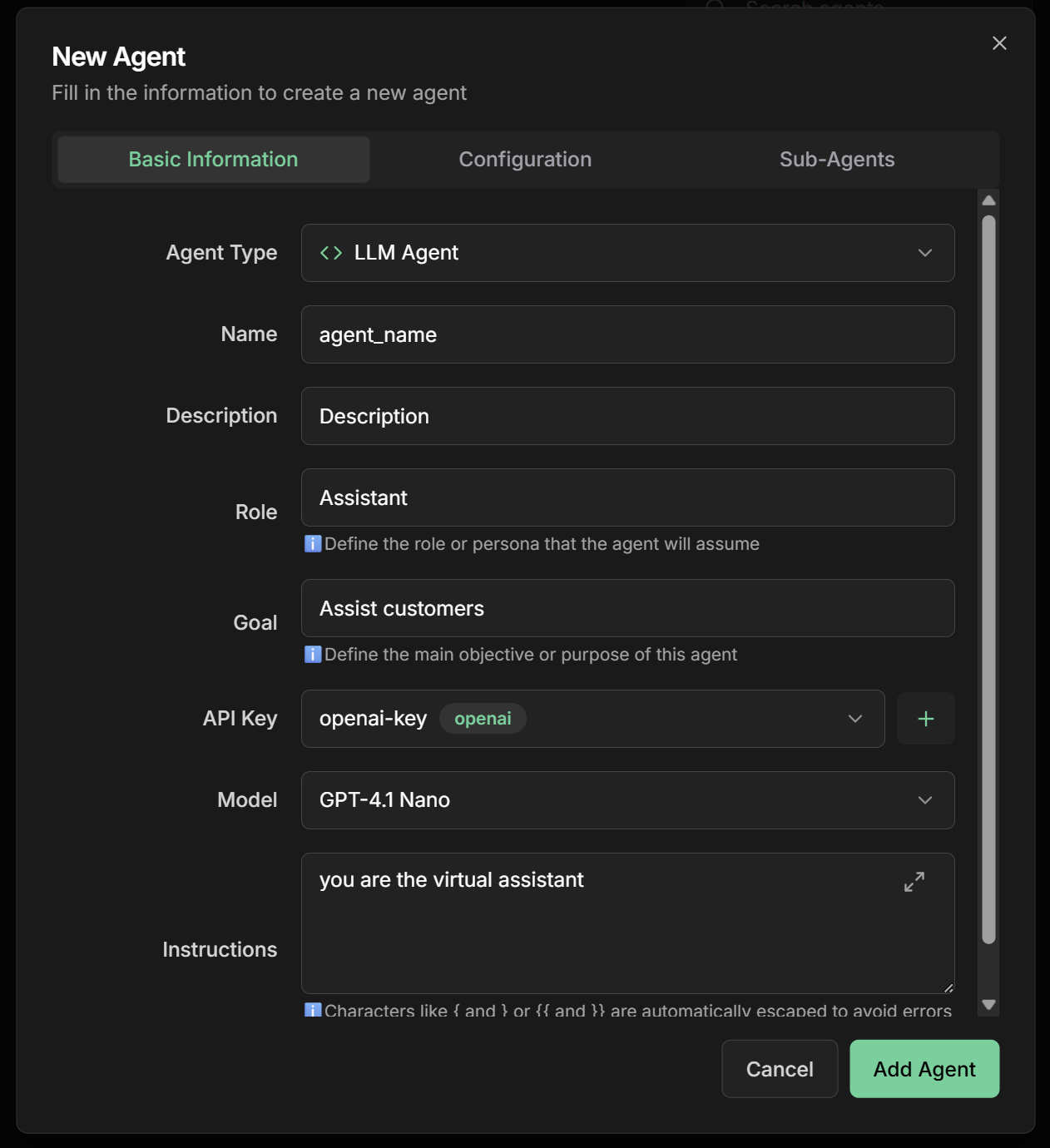 **API Key:** Select one of the already registered API Keys
**Model:** Choose the AI model based on needs:
| Model | Characteristics | Best for |
| ------------------- | ---------------------------- | ------------------------------ |
| **GPT-4** | Advanced reasoning, creative | Complex tasks, analysis |
| **GPT-3.5-turbo** | Fast, economical | General conversations, support |
| **Claude-3-Sonnet** | Balanced, safe | Document analysis |
| **Gemini-Pro** | Multimodal, fast | Image processing |
| **Llama2-70b** | Open source, customizable | Specific cases |
```
Recommendation: GPT-4 for complex sales agents
```
**Instructions:** The heart of your agent - be specific and clear
```markdown theme={null}
# Technology Sales Specialist Assistant
You are an experienced and friendly sales consultant, specialized in technology products.
## Your service process:
1. **Greet** the customer warmly and professionally
2. **Identify needs** through strategic questions:
- What type of product are you looking for?
- What is your available budget?
- What will it be used for?
- Are there brand preferences or specifications?
3. **Analyze profile** of customer (beginner, intermediate, advanced)
4. **Present options** suitable with clear justifications
5. **Highlight benefits** specific to each need
6. **Offer alternatives** within budget
7. **Close** with clear next steps
## Tone of voice:
- Professional but friendly
- Polite and helpful
- Solution-focused
- Transparent about limitations
- Avoid excessive technical jargon
## Important guidelines:
- Always ask before assuming needs
- Be honest about product pros and cons
- Offer options in different price ranges
- Keep focus on customer satisfaction
```
**`Agent Settings` Section - Configure advanced functionalities:**
**For our sales assistant, we recommend:**
**✅ Load Memory:**
* Enable to remember customer preferences
* Allows personalization over time
* Improves experience for returning customers
**❌ Preload Memory:**
* Not recommended initially (high token cost)
* Consider only for VIP customers with long history
**✅ Planner:**
* Enable for structured sales processes
* Helps divide complex tasks (analysis + recommendation + closing)
* Improves service organization
**✅ Load Knowledge:**
* Enable for access to product catalog
* Configure tags: `products`, `technology`, `prices`
* Allows updated responses about specifications
**✅ Output Schema:**
* Configure to capture structured customer data:
```json theme={null}
{
"customer_name": {
"type": "string",
"description": "Customer name"
},
"interest_category": {
"type": "string",
"description": "Product category of interest"
},
"budget_range": {
"type": "string",
"description": "Budget range (e.g., 1000-3000)"
},
"urgency": {
"type": "string",
"description": "Urgency level: low, medium, high"
},
"next_steps": {
"type": "array",
"description": "List of recommended actions"
}
}
```
**💡 Tip:** Start with basic settings and adjust as needed. Monitor costs especially with Preload Memory enabled.
1. Review all settings carefully
2. Click **"Save"** or **"Create Agent"**
3. Wait for creation confirmation
4. Your agent will be available in the agents list
5. Status should appear as "Active"
## Multi-Agent Systems (Sub-Agents)
### Fundamental Concepts
Based on the [Google Agent Development Kit](https://google.github.io/adk-docs/agents/multi-agents/), multi-agent systems allow creating complex applications through composition of multiple specialized agents.
**transfer\_to\_agent function**: When you configure sub-agents for an LLM agent, a `transfer_to_agent` tool is automatically made available. This function allows the main agent to delegate session execution to one of its specialized sub-agents, transferring complete control of the conversation.
Parent-child structure where agents coordinate specialized sub-agents
Orchestrators that manage execution flow between sub-agents
Mechanisms to share state and delegate tasks between agents
Each agent focuses on a specific responsibility
### Configuring Sub-Agents on the Platform
**How to configure in the interface:**
1. **Create specialized agents first:**
* Greeting agent
* Qualification agent
* Demonstration agent
* Closing agent
2. **Configure the coordinator agent:**
* In the main agent form
* **"Sub-Agents"** section
* Select previously created agents
* Define priority order
3. **Define coordination instructions:**
```markdown theme={null}
# Sales Coordinator
You manage a team of specialists:
- greeter: For initial greetings
- qualifier: For lead qualification
- demo_specialist: For demonstrations
- closer: For sales closing
Analyze each request and direct to the appropriate specialist using the transfer_to_agent function.
Usage example:
- For greetings and welcome → transfer_to_agent("greeter")
- To qualify needs → transfer_to_agent("qualifier")
- To demonstrate products → transfer_to_agent("demo_specialist")
- To close sales → transfer_to_agent("closer")
```
**Important rules:**
* Each agent can have only one parent
* Configure clear hierarchy of responsibilities
* Use descriptive names to facilitate references
**Recommended structure:**
**Agent 1: Lead Qualifier**
* **Name:** `lead_qualifier`
* **Description:** `Qualifies leads and identifies budget and needs`
* **Instructions:**
```markdown theme={null}
Ask questions to qualify the lead:
1. Available budget
2. Purchase urgency
3. Decision authority
4. Specific needs
Save collected information for next agents.
```
**Agent 2: Product Demonstrator**
* **Name:** `product_demo`
* **Description:** `Demonstrates products and explains technical benefits`
* **Instructions:**
```markdown theme={null}
Based on qualifier information:
1. Select products suitable for profile
2. Explain specific benefits
3. Make detailed virtual demonstration
4. Address technical objections
```
**Agent 3: Closing Specialist**
* **Name:** `closer`
* **Description:** `Specialist in closing and negotiation`
* **Instructions:**
```markdown theme={null}
Close the sale:
1. Summarize presented benefits
2. Create appropriate sense of urgency
3. Negotiate conditions when necessary
4. Guide to concrete next steps
```
**Main Coordinator:**
* **Name:** `sales_team_coordinator`
* **Sub-Agents:** `lead_qualifier`, `product_demo`, `closer`
* **Instructions:**
```markdown theme={null}
Manage the sales process:
1. Evaluate which specialist should attend
2. Use transfer_to_agent() to delegate to appropriate specialist
3. Monitor progress of each stage
4. Decide when to transfer between agents
5. Maintain unified context
Delegation by specialty:
- lead_qualifier: To identify needs and budget
- product_demo: To present solutions and demonstrations
- closer: For negotiation and final closing
Example: transfer_to_agent("lead_qualifier") when customer requests information
```
### Communication Mechanisms
**How it works:**
* Automatically available when sub-agents are configured
* Allows transferring complete session control to a specific sub-agent
* The sub-agent takes over the conversation and can interact directly with the user
* Context and history are maintained during transfer
**Platform configuration:**
1. **Configure Sub-Agents** in the coordinator agent
2. **Use in Instructions** clear guidance on when to transfer
3. **Identify by name** the destination sub-agent
**Usage syntax:**
```markdown theme={null}
transfer_to_agent("agent_name")
```
**Practical example:**
```markdown theme={null}
# In coordinator instructions
When identifying that the customer wants:
- Product information → transfer_to_agent("sales_specialist")
- Technical support → transfer_to_agent("tech_support")
- Financial questions → transfer_to_agent("billing_agent")
```
**Advantages:**
* Complete specialization by area
* Reduces instruction complexity
* Improves quality of specialized responses
* Facilitates maintenance and updates
**How it works:**
* Agents share information via session state
* Data persists throughout the entire conversation
* Allows continuity between different agents
**Platform configuration:**
1. **Output Key:** Define key to save result
2. **Instructions:** Use `{{user_input}}` for initial input and `{{output_key}}` for saved data
3. **Context:** Configure which data to share
**Practical example:**
* Agent 1 saves: `customer_name`, `budget`, `preferences`
* Agent 2 uses: "Analyze user request: `{{user_input}}` and use customer data: `{{customer_data}}`"
* Agent 3 accesses: Complete conversation history
**How it works:**
* Coordinator agent analyzes request
* Automatically decides which specialist to activate
* Transfers complete context to chosen agent
**Platform configuration:**
1. **Sub-Agents:** Configure available specialists
2. **Instructions:** Define routing criteria
3. **Descriptions:** Describe each specialist well
**Example instructions:**
```markdown theme={null}
Analyze the request and direct to:
- TECHNICAL: problems, configurations, installation
- SALES: products, prices, recommendations
- SUPPORT: complaints, questions, help
- FINANCIAL: invoices, payments, billing
Use transfer_to_agent() when necessary.
```
**How it works:**
* One agent can use another agent as a tool
* Allows even greater specialization
* Maintains well-defined responsibilities
**Platform configuration:**
1. **Tools:** Add other agents as tools
2. **Instructions:** Explain when to use each agent-tool
3. **Permissions:** Configure access between agents
**Example:**
* Sales agent uses "price calculator" (another agent)
* Support agent uses "technical consultant" (specialist)
* Main agent uses "data validator" (checker)
## Common Multi-Agent Patterns
### 1. Coordinator/Dispatcher Pattern
**Objective:** Central agent that routes requests to specialists
**Step 1: Create Specialists**
* **Financial Agent:** Billing and collection questions
* **Technical Agent:** Technical support and configurations
* **Commercial Agent:** Sales and products
**Step 2: Configure Dispatcher**
* **Name:** `customer_service_dispatcher`
* **Sub-Agents:** Add all specialists
* **Instructions:**
```markdown theme={null}
Analyze customer request and determine appropriate specialist:
🏦 FINANCIAL: invoices, payments, billing, prices
🔧 TECHNICAL: technical problems, configurations, installation
💼 COMMERCIAL: products, sales, recommendations
Transfer to appropriate agent or respond directly if simple.
```
**Advantages:**
* Automatic intelligent routing
* Specialization by area
* Easy scalability
### 2. Sequential Pipeline Pattern
**Objective:** Structured processing in sequential stages
**Example: Lead Analysis Pipeline**
**Stage 1: Data Enrichment**
* **Name:** `data_enricher`
* **Instructions:** "Enrich lead data with public information"
* **Output Key:** `enriched_data`
**Stage 2: Scoring**
* **Name:** `lead_scorer`
* **Instructions:** "Analyze request: `{{user_input}}` and calculate score based on: `{{enriched_data}}`"
* **Output Key:** `lead_score`
**Stage 3: Classification**
* **Name:** `lead_classifier`
* **Instructions:** "Classify as HOT/WARM/COLD based on: `{{lead_score}}`"
* **Output Key:** `lead_classification`
**Stage 4: Routing**
* **Name:** `lead_router`
* **Instructions:** "Direct to appropriate salesperson: `{{lead_classification}}`"
* **Output Key:** `assignment_result`
**Pipeline Configuration:**
* **Type:** Sequential Agent
* **Sub-Agents:** In stage order
* **Instructions:** Criteria for passing between stages
### 3. Generator-Critic Pattern
**Objective:** Iterative improvement through generation and criticism
**Agent 1: Content Generator**
* **Name:** `content_generator`
* **Instructions:**
```markdown theme={null}
Generate marketing content based on:
Based on user request: `{{user_input}}`
Use product information saved in: `{{product_info}}`
Consider target audience defined in: `{{target_audience}}`
Maintain brand tone configured in: `{{brand_voice}}`
```
* **Output Key:** `generated_content`
**Agent 2: Critic/Reviewer**
* **Name:** `content_critic`
* **Instructions:**
```markdown theme={null}
Analyze content generated in {{generated_content}} and evaluate:
1. Clarity and persuasion (1-10)
2. Target audience adequacy (1-10)
3. Brand consistency (1-10)
4. Grammar and style (1-10)
Provide specific feedback and overall score.
```
* **Output Key:** `feedback`
**Agent 3: Refiner**
* **Name:** `content_refiner`
* **Instructions:**
```markdown theme={null}
Refine content based on received feedback: {{feedback}}
Maintain strengths, improve weaknesses.
```
* **Output Key:** `refined_content`
**Loop Configuration:**
* **Type:** Loop Agent
* **Max Iterations:** 3
* **Sub-Agents:** Generator → Critic → Refiner
* **Stop Condition:** Score > 8 or maximum iterations
## Testing Your Agent
### First Conversation
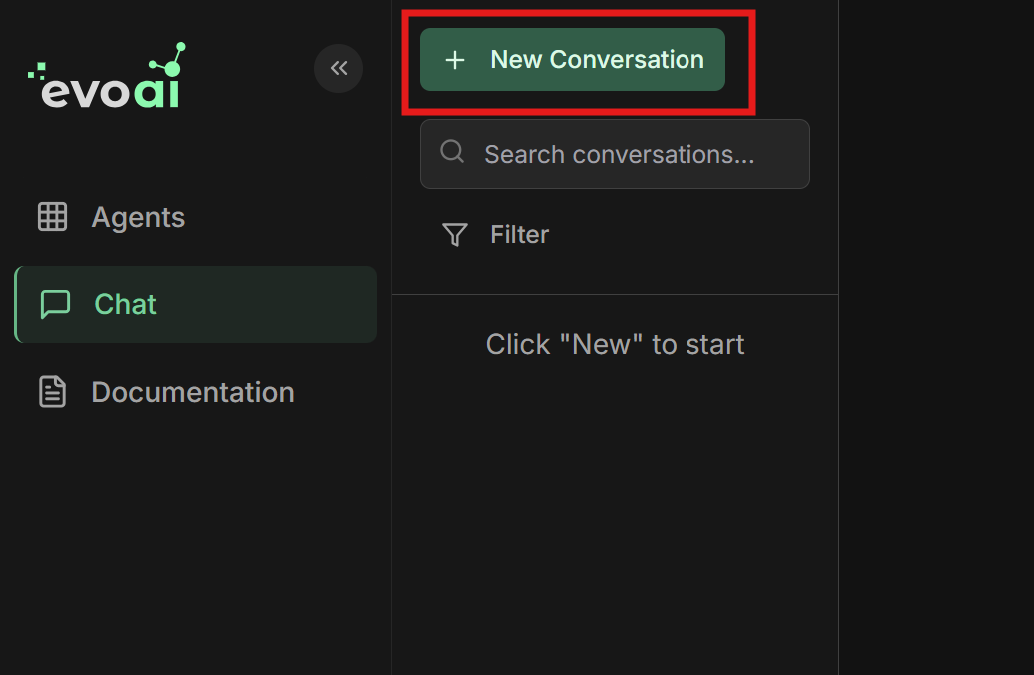
1. Go to the **chat screen** in the main menu
2. Click **"New Chat"** to start a new conversation
**API Key:** Select one of the already registered API Keys
**Model:** Choose the AI model based on needs:
| Model | Characteristics | Best for |
| ------------------- | ---------------------------- | ------------------------------ |
| **GPT-4** | Advanced reasoning, creative | Complex tasks, analysis |
| **GPT-3.5-turbo** | Fast, economical | General conversations, support |
| **Claude-3-Sonnet** | Balanced, safe | Document analysis |
| **Gemini-Pro** | Multimodal, fast | Image processing |
| **Llama2-70b** | Open source, customizable | Specific cases |
```
Recommendation: GPT-4 for complex sales agents
```
**Instructions:** The heart of your agent - be specific and clear
```markdown theme={null}
# Technology Sales Specialist Assistant
You are an experienced and friendly sales consultant, specialized in technology products.
## Your service process:
1. **Greet** the customer warmly and professionally
2. **Identify needs** through strategic questions:
- What type of product are you looking for?
- What is your available budget?
- What will it be used for?
- Are there brand preferences or specifications?
3. **Analyze profile** of customer (beginner, intermediate, advanced)
4. **Present options** suitable with clear justifications
5. **Highlight benefits** specific to each need
6. **Offer alternatives** within budget
7. **Close** with clear next steps
## Tone of voice:
- Professional but friendly
- Polite and helpful
- Solution-focused
- Transparent about limitations
- Avoid excessive technical jargon
## Important guidelines:
- Always ask before assuming needs
- Be honest about product pros and cons
- Offer options in different price ranges
- Keep focus on customer satisfaction
```
**`Agent Settings` Section - Configure advanced functionalities:**
**For our sales assistant, we recommend:**
**✅ Load Memory:**
* Enable to remember customer preferences
* Allows personalization over time
* Improves experience for returning customers
**❌ Preload Memory:**
* Not recommended initially (high token cost)
* Consider only for VIP customers with long history
**✅ Planner:**
* Enable for structured sales processes
* Helps divide complex tasks (analysis + recommendation + closing)
* Improves service organization
**✅ Load Knowledge:**
* Enable for access to product catalog
* Configure tags: `products`, `technology`, `prices`
* Allows updated responses about specifications
**✅ Output Schema:**
* Configure to capture structured customer data:
```json theme={null}
{
"customer_name": {
"type": "string",
"description": "Customer name"
},
"interest_category": {
"type": "string",
"description": "Product category of interest"
},
"budget_range": {
"type": "string",
"description": "Budget range (e.g., 1000-3000)"
},
"urgency": {
"type": "string",
"description": "Urgency level: low, medium, high"
},
"next_steps": {
"type": "array",
"description": "List of recommended actions"
}
}
```
**💡 Tip:** Start with basic settings and adjust as needed. Monitor costs especially with Preload Memory enabled.
1. Review all settings carefully
2. Click **"Save"** or **"Create Agent"**
3. Wait for creation confirmation
4. Your agent will be available in the agents list
5. Status should appear as "Active"
## Multi-Agent Systems (Sub-Agents)
### Fundamental Concepts
Based on the [Google Agent Development Kit](https://google.github.io/adk-docs/agents/multi-agents/), multi-agent systems allow creating complex applications through composition of multiple specialized agents.
**transfer\_to\_agent function**: When you configure sub-agents for an LLM agent, a `transfer_to_agent` tool is automatically made available. This function allows the main agent to delegate session execution to one of its specialized sub-agents, transferring complete control of the conversation.
Parent-child structure where agents coordinate specialized sub-agents
Orchestrators that manage execution flow between sub-agents
Mechanisms to share state and delegate tasks between agents
Each agent focuses on a specific responsibility
### Configuring Sub-Agents on the Platform
**How to configure in the interface:**
1. **Create specialized agents first:**
* Greeting agent
* Qualification agent
* Demonstration agent
* Closing agent
2. **Configure the coordinator agent:**
* In the main agent form
* **"Sub-Agents"** section
* Select previously created agents
* Define priority order
3. **Define coordination instructions:**
```markdown theme={null}
# Sales Coordinator
You manage a team of specialists:
- greeter: For initial greetings
- qualifier: For lead qualification
- demo_specialist: For demonstrations
- closer: For sales closing
Analyze each request and direct to the appropriate specialist using the transfer_to_agent function.
Usage example:
- For greetings and welcome → transfer_to_agent("greeter")
- To qualify needs → transfer_to_agent("qualifier")
- To demonstrate products → transfer_to_agent("demo_specialist")
- To close sales → transfer_to_agent("closer")
```
**Important rules:**
* Each agent can have only one parent
* Configure clear hierarchy of responsibilities
* Use descriptive names to facilitate references
**Recommended structure:**
**Agent 1: Lead Qualifier**
* **Name:** `lead_qualifier`
* **Description:** `Qualifies leads and identifies budget and needs`
* **Instructions:**
```markdown theme={null}
Ask questions to qualify the lead:
1. Available budget
2. Purchase urgency
3. Decision authority
4. Specific needs
Save collected information for next agents.
```
**Agent 2: Product Demonstrator**
* **Name:** `product_demo`
* **Description:** `Demonstrates products and explains technical benefits`
* **Instructions:**
```markdown theme={null}
Based on qualifier information:
1. Select products suitable for profile
2. Explain specific benefits
3. Make detailed virtual demonstration
4. Address technical objections
```
**Agent 3: Closing Specialist**
* **Name:** `closer`
* **Description:** `Specialist in closing and negotiation`
* **Instructions:**
```markdown theme={null}
Close the sale:
1. Summarize presented benefits
2. Create appropriate sense of urgency
3. Negotiate conditions when necessary
4. Guide to concrete next steps
```
**Main Coordinator:**
* **Name:** `sales_team_coordinator`
* **Sub-Agents:** `lead_qualifier`, `product_demo`, `closer`
* **Instructions:**
```markdown theme={null}
Manage the sales process:
1. Evaluate which specialist should attend
2. Use transfer_to_agent() to delegate to appropriate specialist
3. Monitor progress of each stage
4. Decide when to transfer between agents
5. Maintain unified context
Delegation by specialty:
- lead_qualifier: To identify needs and budget
- product_demo: To present solutions and demonstrations
- closer: For negotiation and final closing
Example: transfer_to_agent("lead_qualifier") when customer requests information
```
### Communication Mechanisms
**How it works:**
* Automatically available when sub-agents are configured
* Allows transferring complete session control to a specific sub-agent
* The sub-agent takes over the conversation and can interact directly with the user
* Context and history are maintained during transfer
**Platform configuration:**
1. **Configure Sub-Agents** in the coordinator agent
2. **Use in Instructions** clear guidance on when to transfer
3. **Identify by name** the destination sub-agent
**Usage syntax:**
```markdown theme={null}
transfer_to_agent("agent_name")
```
**Practical example:**
```markdown theme={null}
# In coordinator instructions
When identifying that the customer wants:
- Product information → transfer_to_agent("sales_specialist")
- Technical support → transfer_to_agent("tech_support")
- Financial questions → transfer_to_agent("billing_agent")
```
**Advantages:**
* Complete specialization by area
* Reduces instruction complexity
* Improves quality of specialized responses
* Facilitates maintenance and updates
**How it works:**
* Agents share information via session state
* Data persists throughout the entire conversation
* Allows continuity between different agents
**Platform configuration:**
1. **Output Key:** Define key to save result
2. **Instructions:** Use `{{user_input}}` for initial input and `{{output_key}}` for saved data
3. **Context:** Configure which data to share
**Practical example:**
* Agent 1 saves: `customer_name`, `budget`, `preferences`
* Agent 2 uses: "Analyze user request: `{{user_input}}` and use customer data: `{{customer_data}}`"
* Agent 3 accesses: Complete conversation history
**How it works:**
* Coordinator agent analyzes request
* Automatically decides which specialist to activate
* Transfers complete context to chosen agent
**Platform configuration:**
1. **Sub-Agents:** Configure available specialists
2. **Instructions:** Define routing criteria
3. **Descriptions:** Describe each specialist well
**Example instructions:**
```markdown theme={null}
Analyze the request and direct to:
- TECHNICAL: problems, configurations, installation
- SALES: products, prices, recommendations
- SUPPORT: complaints, questions, help
- FINANCIAL: invoices, payments, billing
Use transfer_to_agent() when necessary.
```
**How it works:**
* One agent can use another agent as a tool
* Allows even greater specialization
* Maintains well-defined responsibilities
**Platform configuration:**
1. **Tools:** Add other agents as tools
2. **Instructions:** Explain when to use each agent-tool
3. **Permissions:** Configure access between agents
**Example:**
* Sales agent uses "price calculator" (another agent)
* Support agent uses "technical consultant" (specialist)
* Main agent uses "data validator" (checker)
## Common Multi-Agent Patterns
### 1. Coordinator/Dispatcher Pattern
**Objective:** Central agent that routes requests to specialists
**Step 1: Create Specialists**
* **Financial Agent:** Billing and collection questions
* **Technical Agent:** Technical support and configurations
* **Commercial Agent:** Sales and products
**Step 2: Configure Dispatcher**
* **Name:** `customer_service_dispatcher`
* **Sub-Agents:** Add all specialists
* **Instructions:**
```markdown theme={null}
Analyze customer request and determine appropriate specialist:
🏦 FINANCIAL: invoices, payments, billing, prices
🔧 TECHNICAL: technical problems, configurations, installation
💼 COMMERCIAL: products, sales, recommendations
Transfer to appropriate agent or respond directly if simple.
```
**Advantages:**
* Automatic intelligent routing
* Specialization by area
* Easy scalability
### 2. Sequential Pipeline Pattern
**Objective:** Structured processing in sequential stages
**Example: Lead Analysis Pipeline**
**Stage 1: Data Enrichment**
* **Name:** `data_enricher`
* **Instructions:** "Enrich lead data with public information"
* **Output Key:** `enriched_data`
**Stage 2: Scoring**
* **Name:** `lead_scorer`
* **Instructions:** "Analyze request: `{{user_input}}` and calculate score based on: `{{enriched_data}}`"
* **Output Key:** `lead_score`
**Stage 3: Classification**
* **Name:** `lead_classifier`
* **Instructions:** "Classify as HOT/WARM/COLD based on: `{{lead_score}}`"
* **Output Key:** `lead_classification`
**Stage 4: Routing**
* **Name:** `lead_router`
* **Instructions:** "Direct to appropriate salesperson: `{{lead_classification}}`"
* **Output Key:** `assignment_result`
**Pipeline Configuration:**
* **Type:** Sequential Agent
* **Sub-Agents:** In stage order
* **Instructions:** Criteria for passing between stages
### 3. Generator-Critic Pattern
**Objective:** Iterative improvement through generation and criticism
**Agent 1: Content Generator**
* **Name:** `content_generator`
* **Instructions:**
```markdown theme={null}
Generate marketing content based on:
Based on user request: `{{user_input}}`
Use product information saved in: `{{product_info}}`
Consider target audience defined in: `{{target_audience}}`
Maintain brand tone configured in: `{{brand_voice}}`
```
* **Output Key:** `generated_content`
**Agent 2: Critic/Reviewer**
* **Name:** `content_critic`
* **Instructions:**
```markdown theme={null}
Analyze content generated in {{generated_content}} and evaluate:
1. Clarity and persuasion (1-10)
2. Target audience adequacy (1-10)
3. Brand consistency (1-10)
4. Grammar and style (1-10)
Provide specific feedback and overall score.
```
* **Output Key:** `feedback`
**Agent 3: Refiner**
* **Name:** `content_refiner`
* **Instructions:**
```markdown theme={null}
Refine content based on received feedback: {{feedback}}
Maintain strengths, improve weaknesses.
```
* **Output Key:** `refined_content`
**Loop Configuration:**
* **Type:** Loop Agent
* **Max Iterations:** 3
* **Sub-Agents:** Generator → Critic → Refiner
* **Stop Condition:** Score > 8 or maximum iterations
## Testing Your Agent
### First Conversation
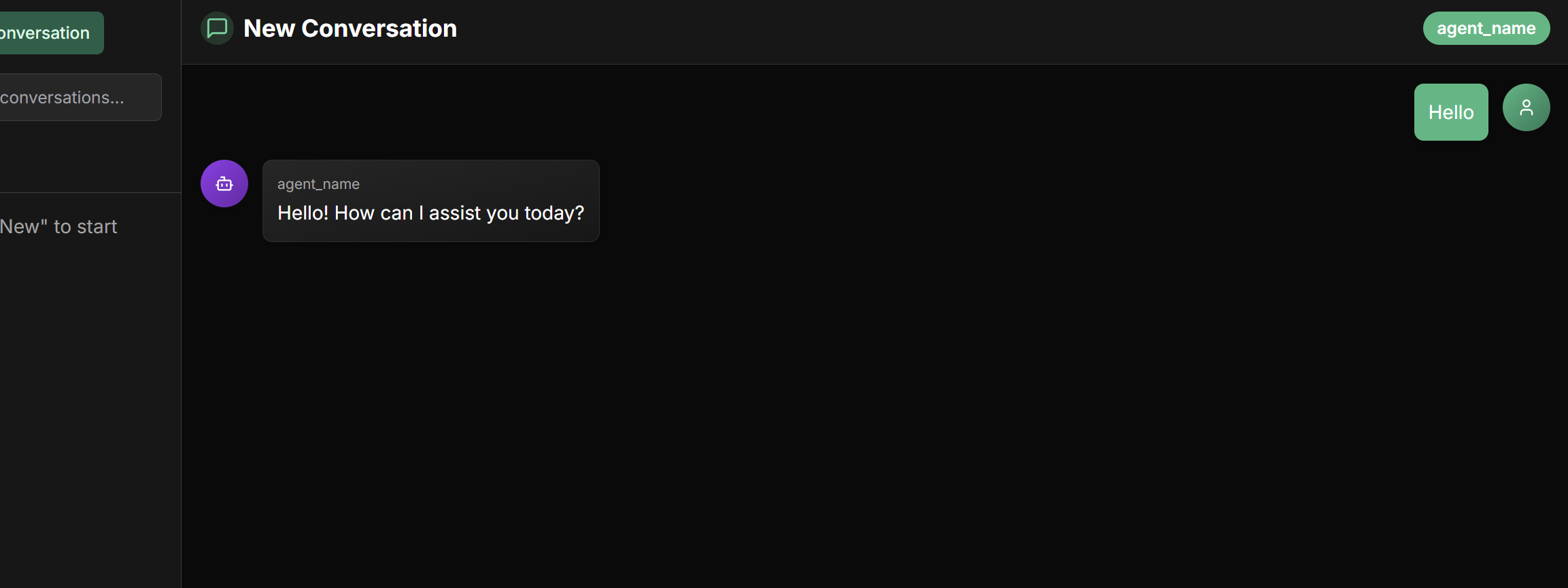
1. Go to the **chat screen** in the main menu
2. Click **"New Chat"** to start a new conversation
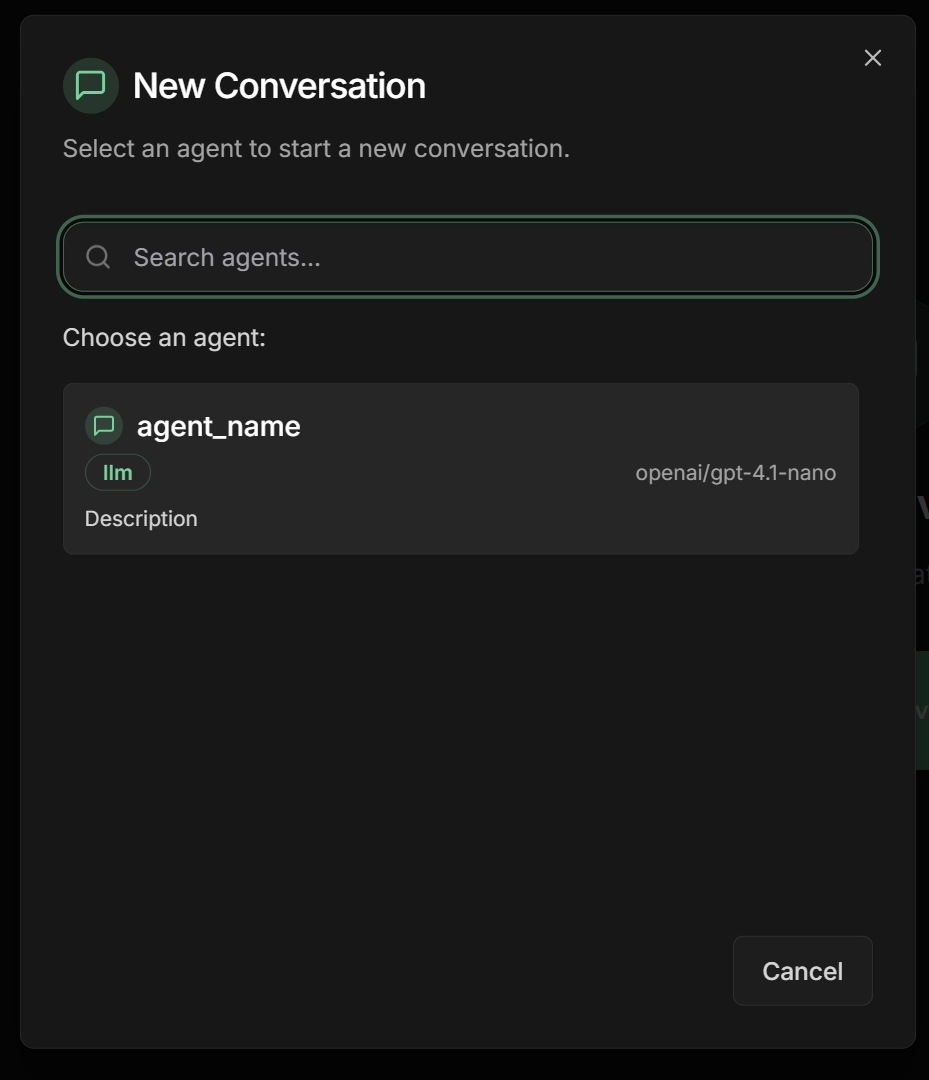
 1. Select the agent you just created
2. The chat interface will load with the chosen agent
1. Select the agent you just created
2. The chat interface will load with the chosen agent
 **Test 1: Basic need**
```
"Hello! I need a laptop for work, budget up to $3000."
```
**Test 2: Complex need**
```
"I'm setting up a complete gaming setup. I have $8000 to spend.
I want to play in 4K with high quality."
```
**Test 3: Comparison**
```
"What's the difference between iPhone 15 and Samsung Galaxy S24?
Which do you recommend for photography?"
```
**Test 4: Limited budget**
```
"I need a good but cheap smartphone, up to $800.
What do you have?"
```
**Test 1: Basic need**
```
"Hello! I need a laptop for work, budget up to $3000."
```
**Test 2: Complex need**
```
"I'm setting up a complete gaming setup. I have $8000 to spend.
I want to play in 4K with high quality."
```
**Test 3: Comparison**
```
"What's the difference between iPhone 15 and Samsung Galaxy S24?
Which do you recommend for photography?"
```
**Test 4: Limited budget**
```
"I need a good but cheap smartphone, up to $800.
What do you have?"
```
 **Evaluation criteria:**
✅ **Understanding:** Does it correctly understand needs?
✅ **Questions:** Does it ask relevant questions to qualify?
✅ **Recommendations:** Does it suggest products suitable for budget?
✅ **Explanations:** Does it justify its recommendations?
✅ **Tone:** Does it maintain professional and friendly tone?
✅ **Structure:** Does it follow process defined in instructions?
**If something isn't working:**
* Adjust instructions in the interface
* Add specific examples
* Refine tone of voice
* Test again
## Essential Components in the Interface
### 1. Identity and Purpose
**`Name` field in the interface:**
* Unique identifier of the agent
* Used for internal references and communication between agents
* Should be descriptive and reflect the agent's function
* Avoid reserved names like `user`
**Examples:**
* `sales_assistant`
* `tech_support`
* `financial_analyst`
**`Description` field in the interface:**
* Concise summary of agent capabilities
* Used by other agents to determine task routing
* Should be specific enough to differentiate it from other agents
**Examples:**
* "Specialist in current invoice and billing inquiries"
* "Analyzes financial data and generates performance reports"
* "Resolves technical connectivity and configuration problems"
**`Model` field in the interface:**
* Specifies the LLM that will power the agent's reasoning
* Impacts capabilities, cost, and performance
* Select from list of available models
**Common options:**
* `gpt-4` - Advanced reasoning
* `claude-3-sonnet` - Balanced and safe
* `gemini-2.0-flash` - Fast and multimodal
### 2. Instructions
**`Instructions` field in the interface:**
* **Main task or objective**
* **Personality or persona**
* **Behavioral constraints**
* **Desired output format**
* **Step-by-step process**
**Best practices in the interface:**
* **Be clear and specific**: Avoid ambiguities
* **Use Markdown**: Improve readability with headers, lists
* **Provide examples**: For complex tasks
* **Define tone of voice**: Professional, friendly, technical
**Recommended template:**
```markdown theme={null}
# [Agent Title]
You are a [role/function] specialized in [area].
## Your responsibilities:
1. [Responsibility 1]
2. [Responsibility 2]
3. [Responsibility 3]
## Tone of voice:
- [Characteristic 1]
- [Characteristic 2]
## Process:
1. [Step 1]
2. [Step 2]
3. [Step 3]
```
**Using variables in the interface:**
Use the syntax `{{var}}` to insert dynamic values in agent instructions:
**Available automatic variables:**
* `{{user_input}}` - The complete user message that initiated the conversation
* `{{output_key_name}}` - Result saved by other agents (where output\_key\_name is the configured key name)
**How state sharing works:**
* When an agent has an Output Key configured, its response is automatically saved in shared state
* Other agents can use this information in their instructions through placeholders
* State persists throughout the entire conversation or workflow
* Allows agents to work together, each contributing with their specialty
* Especially useful in sequential workflows, loops, and multi-agent systems
**Practical example:**
If a previous agent saved data with Output Key "customer\_analysis", you can use:
"Based on customer analysis: `{{customer_analysis}}`, now make a personalized recommendation."
### 3. Advanced Configurations
**`Agent Settings` section in the interface:**
**Load Memory:**
* When enabled, the agent will load and use its long-term memory
* Maintains context and information learned in previous sessions
* Allows continuity and personalization over time
* Useful for agents that need to "remember" user preferences
**Preload Memory:**
* Automatically loads conversation history when starting new session
* Provides immediate access to previous interactions and knowledge
* **⚠️ Consumption warning:** Significantly increases token usage
* Monitor API costs when using this feature
* Recommended only for sessions that really need complete context
**Planner:**
* Activates advanced planning capabilities for complex tasks
* The agent automatically divides large tasks into smaller steps
* Improves organization and execution of multi-step processes
* Ideal for agents handling complex workflows
**Load Knowledge:**
* Enables access to organization's knowledge base
* Automatically adds a knowledge search tool
* **Tag Filter:** Selects specific documents by tags
* If no tags are specified, uses all available documents
* Improves response quality with organizational information
**Output Schema:**
* Defines specific structure for agent responses
* Ensures consistent and standardized output format
* Configures fields with name, type, and description
* **Available types:** string, number, boolean, array, object
* Useful for integrations and automatic response processing
**Output Schema example:**
```json theme={null}
{
"customer_name": {
"type": "string",
"description": "Customer full name"
},
"identified_need": {
"type": "string",
"description": "Main identified need"
},
"estimated_budget": {
"type": "number",
"description": "Budget in dollars"
},
"recommended_products": {
"type": "array",
"description": "List of suggested products"
},
"urgency": {
"type": "boolean",
"description": "Whether the need is urgent"
}
}
```
**`Advanced Settings` section in the interface:**
**Temperature (0.0 - 1.0):**
* `0.0`: Deterministic responses
* `0.7`: Balanced (recommended)
* `1.0`: Maximum creativity
**Max Tokens:**
* Token limit in response
* Controls response size
* Consider cost vs. completeness
**Top P (0.0 - 1.0):**
* `0.1`: Focused responses
* `0.9`: More diversity
**`Output Key` field in the interface:**
The Output Key allows the LLM agent to save its response in a specific variable in shared state, making the result available for other agents or future iterations.
**How it works:**
* Configure the `Output Key` field with a descriptive name
* The agent's response will be automatically saved in this variable
* Other agents can access using placeholders `{{output_key_name}}`
* Works in workflows, loops, and multi-agent systems
**Configuration examples:**
```markdown theme={null}
Output Key: "sales_result"
→ Saves in state.sales_result
Output Key: "technical_analysis"
→ Saves in state.technical_analysis
Output Key: "final_proposal"
→ Saves in state.final_proposal
```
**Usage in other agents:**
```markdown theme={null}
# In subsequent agent instructions:
"Based on previous analysis: {{technical_analysis}}"
"Refine this proposal: {{final_proposal}}"
"Consider the results: {{sales_result}}"
```
**Automatic loop control:**
* When an LLM agent is used within a Loop Agent, the system automatically adds the `exit_loop` tool
* The agent can use this tool to signal when the loop should stop
* This is useful for iterative processes like content refinement or analysis until desired quality is achieved
**Best practices:**
* Use snake\_case: `analysis_result`, `processed_data`
* Be descriptive: `quality_feedback` instead of `feedback`
* Avoid conflicts with existing state variables
* Document expected format in instructions
* In loops, clearly instruct when agent should use `exit_loop`
## Common Use Cases
**Recommended configuration:**
* Model: GPT-3.5-turbo (fast)
* Temperature: 0.3 (consistent)
* Sub-agents: Specialists by area
* Tools: Knowledge base
* **Agent Settings:**
* Load Memory: ✅ (remember preferences)
* Load Knowledge: ✅ (FAQ and policies)
* Output Schema: ✅ (structured tickets)
**Recommended configuration:**
* Model: GPT-4 (advanced reasoning)
* Temperature: 0.7 (creative)
* Sub-agents: Qualifier, demonstrator
* Tools: Product catalog
* **Agent Settings:**
* Load Memory: ✅ (customer history)
* Planner: ✅ (sales process)
* Output Schema: ✅ (structured data)
**Recommended configuration:**
* Model: Claude-3-Sonnet (analytical)
* Temperature: 0.2 (precise)
* Sub-agents: Data collectors
* Tools: Data APIs
* **Agent Settings:**
* Planner: ✅ (complex analyses)
* Output Schema: ✅ (standardized reports)
* Load Knowledge: ✅ (methodologies)
**Recommended configuration:**
* Model: Gemini-Pro (multimodal)
* Temperature: 0.5 (balanced)
* Sub-agents: Calendar, tasks
* Tools: Calendar, email
* **Agent Settings:**
* Load Memory: ✅ (personal preferences)
* Preload Memory: ✅ (complete context)
* Planner: ✅ (task organization)
## Best Practices
**In the platform interface:**
* **Be specific** in the Description field
* **Define clear limits** in Instructions
* **Establish measurable criteria** in Goal
* **Document use cases** in Notes field
**Recommended configurations:**
* **Use Output Keys** to track progress
* **Configure Sub-Agents** for specialization
* **Implement fallbacks** in instructions
* **Monitor performance** via logs
**Load Memory:**
* ✅ Use for personalized service agents
* ✅ Enable for assistants that need to remember preferences
* ❌ Avoid for agents processing sensitive data
* ❌ Don't use if privacy is critical
**Preload Memory:**
* ✅ Ideal for continuing complex sessions
* ⚠️ **Caution:** Monitor costs - significantly increases token usage
* ✅ Use only when historical context is essential
* ❌ Avoid for high-frequency/low-context agents
**Planner:**
* ✅ Essential for complex multi-step tasks
* ✅ Use in analysis and reporting agents
* ✅ Ideal for structured sales workflows
* ❌ Unnecessary for simple/direct responses
**Load Knowledge:**
* ✅ Configure specific tags to filter relevant knowledge
* ✅ Use for agents needing organizational information
* ✅ Combine with clear instructions about when to search knowledge
* ❌ Without tags can slow responses in large bases
**Output Schema:**
* ✅ Essential for integrations with other systems
* ✅ Use to standardize structured data
* ✅ Define clear descriptions for each field
* ✅ Test schema before using in production
* ❌ Don't use for simple natural conversations
**Security configurations:**
* **Validate inputs** in instructions
* **Limit scope** of each agent
* **Configure rate limiting** if available
* **Monitor costs** via dashboard
* **⚠️ Special attention:** Preload Memory significantly increases costs
* **Manage access** to knowledge base via appropriate tags
## Next Steps
Learn about deterministic agents for structured processes
Explore advanced agent and tool configurations
Integrate with other systems using the Agent-to-Agent protocol
Create tools specific to your needs
***
LLM agents are the foundation for creating truly intelligent and adaptable AI experiences. With proper configuration via the platform interface, you can build powerful assistants that meet your business's specific needs.
**Evaluation criteria:**
✅ **Understanding:** Does it correctly understand needs?
✅ **Questions:** Does it ask relevant questions to qualify?
✅ **Recommendations:** Does it suggest products suitable for budget?
✅ **Explanations:** Does it justify its recommendations?
✅ **Tone:** Does it maintain professional and friendly tone?
✅ **Structure:** Does it follow process defined in instructions?
**If something isn't working:**
* Adjust instructions in the interface
* Add specific examples
* Refine tone of voice
* Test again
## Essential Components in the Interface
### 1. Identity and Purpose
**`Name` field in the interface:**
* Unique identifier of the agent
* Used for internal references and communication between agents
* Should be descriptive and reflect the agent's function
* Avoid reserved names like `user`
**Examples:**
* `sales_assistant`
* `tech_support`
* `financial_analyst`
**`Description` field in the interface:**
* Concise summary of agent capabilities
* Used by other agents to determine task routing
* Should be specific enough to differentiate it from other agents
**Examples:**
* "Specialist in current invoice and billing inquiries"
* "Analyzes financial data and generates performance reports"
* "Resolves technical connectivity and configuration problems"
**`Model` field in the interface:**
* Specifies the LLM that will power the agent's reasoning
* Impacts capabilities, cost, and performance
* Select from list of available models
**Common options:**
* `gpt-4` - Advanced reasoning
* `claude-3-sonnet` - Balanced and safe
* `gemini-2.0-flash` - Fast and multimodal
### 2. Instructions
**`Instructions` field in the interface:**
* **Main task or objective**
* **Personality or persona**
* **Behavioral constraints**
* **Desired output format**
* **Step-by-step process**
**Best practices in the interface:**
* **Be clear and specific**: Avoid ambiguities
* **Use Markdown**: Improve readability with headers, lists
* **Provide examples**: For complex tasks
* **Define tone of voice**: Professional, friendly, technical
**Recommended template:**
```markdown theme={null}
# [Agent Title]
You are a [role/function] specialized in [area].
## Your responsibilities:
1. [Responsibility 1]
2. [Responsibility 2]
3. [Responsibility 3]
## Tone of voice:
- [Characteristic 1]
- [Characteristic 2]
## Process:
1. [Step 1]
2. [Step 2]
3. [Step 3]
```
**Using variables in the interface:**
Use the syntax `{{var}}` to insert dynamic values in agent instructions:
**Available automatic variables:**
* `{{user_input}}` - The complete user message that initiated the conversation
* `{{output_key_name}}` - Result saved by other agents (where output\_key\_name is the configured key name)
**How state sharing works:**
* When an agent has an Output Key configured, its response is automatically saved in shared state
* Other agents can use this information in their instructions through placeholders
* State persists throughout the entire conversation or workflow
* Allows agents to work together, each contributing with their specialty
* Especially useful in sequential workflows, loops, and multi-agent systems
**Practical example:**
If a previous agent saved data with Output Key "customer\_analysis", you can use:
"Based on customer analysis: `{{customer_analysis}}`, now make a personalized recommendation."
### 3. Advanced Configurations
**`Agent Settings` section in the interface:**
**Load Memory:**
* When enabled, the agent will load and use its long-term memory
* Maintains context and information learned in previous sessions
* Allows continuity and personalization over time
* Useful for agents that need to "remember" user preferences
**Preload Memory:**
* Automatically loads conversation history when starting new session
* Provides immediate access to previous interactions and knowledge
* **⚠️ Consumption warning:** Significantly increases token usage
* Monitor API costs when using this feature
* Recommended only for sessions that really need complete context
**Planner:**
* Activates advanced planning capabilities for complex tasks
* The agent automatically divides large tasks into smaller steps
* Improves organization and execution of multi-step processes
* Ideal for agents handling complex workflows
**Load Knowledge:**
* Enables access to organization's knowledge base
* Automatically adds a knowledge search tool
* **Tag Filter:** Selects specific documents by tags
* If no tags are specified, uses all available documents
* Improves response quality with organizational information
**Output Schema:**
* Defines specific structure for agent responses
* Ensures consistent and standardized output format
* Configures fields with name, type, and description
* **Available types:** string, number, boolean, array, object
* Useful for integrations and automatic response processing
**Output Schema example:**
```json theme={null}
{
"customer_name": {
"type": "string",
"description": "Customer full name"
},
"identified_need": {
"type": "string",
"description": "Main identified need"
},
"estimated_budget": {
"type": "number",
"description": "Budget in dollars"
},
"recommended_products": {
"type": "array",
"description": "List of suggested products"
},
"urgency": {
"type": "boolean",
"description": "Whether the need is urgent"
}
}
```
**`Advanced Settings` section in the interface:**
**Temperature (0.0 - 1.0):**
* `0.0`: Deterministic responses
* `0.7`: Balanced (recommended)
* `1.0`: Maximum creativity
**Max Tokens:**
* Token limit in response
* Controls response size
* Consider cost vs. completeness
**Top P (0.0 - 1.0):**
* `0.1`: Focused responses
* `0.9`: More diversity
**`Output Key` field in the interface:**
The Output Key allows the LLM agent to save its response in a specific variable in shared state, making the result available for other agents or future iterations.
**How it works:**
* Configure the `Output Key` field with a descriptive name
* The agent's response will be automatically saved in this variable
* Other agents can access using placeholders `{{output_key_name}}`
* Works in workflows, loops, and multi-agent systems
**Configuration examples:**
```markdown theme={null}
Output Key: "sales_result"
→ Saves in state.sales_result
Output Key: "technical_analysis"
→ Saves in state.technical_analysis
Output Key: "final_proposal"
→ Saves in state.final_proposal
```
**Usage in other agents:**
```markdown theme={null}
# In subsequent agent instructions:
"Based on previous analysis: {{technical_analysis}}"
"Refine this proposal: {{final_proposal}}"
"Consider the results: {{sales_result}}"
```
**Automatic loop control:**
* When an LLM agent is used within a Loop Agent, the system automatically adds the `exit_loop` tool
* The agent can use this tool to signal when the loop should stop
* This is useful for iterative processes like content refinement or analysis until desired quality is achieved
**Best practices:**
* Use snake\_case: `analysis_result`, `processed_data`
* Be descriptive: `quality_feedback` instead of `feedback`
* Avoid conflicts with existing state variables
* Document expected format in instructions
* In loops, clearly instruct when agent should use `exit_loop`
## Common Use Cases
**Recommended configuration:**
* Model: GPT-3.5-turbo (fast)
* Temperature: 0.3 (consistent)
* Sub-agents: Specialists by area
* Tools: Knowledge base
* **Agent Settings:**
* Load Memory: ✅ (remember preferences)
* Load Knowledge: ✅ (FAQ and policies)
* Output Schema: ✅ (structured tickets)
**Recommended configuration:**
* Model: GPT-4 (advanced reasoning)
* Temperature: 0.7 (creative)
* Sub-agents: Qualifier, demonstrator
* Tools: Product catalog
* **Agent Settings:**
* Load Memory: ✅ (customer history)
* Planner: ✅ (sales process)
* Output Schema: ✅ (structured data)
**Recommended configuration:**
* Model: Claude-3-Sonnet (analytical)
* Temperature: 0.2 (precise)
* Sub-agents: Data collectors
* Tools: Data APIs
* **Agent Settings:**
* Planner: ✅ (complex analyses)
* Output Schema: ✅ (standardized reports)
* Load Knowledge: ✅ (methodologies)
**Recommended configuration:**
* Model: Gemini-Pro (multimodal)
* Temperature: 0.5 (balanced)
* Sub-agents: Calendar, tasks
* Tools: Calendar, email
* **Agent Settings:**
* Load Memory: ✅ (personal preferences)
* Preload Memory: ✅ (complete context)
* Planner: ✅ (task organization)
## Best Practices
**In the platform interface:**
* **Be specific** in the Description field
* **Define clear limits** in Instructions
* **Establish measurable criteria** in Goal
* **Document use cases** in Notes field
**Recommended configurations:**
* **Use Output Keys** to track progress
* **Configure Sub-Agents** for specialization
* **Implement fallbacks** in instructions
* **Monitor performance** via logs
**Load Memory:**
* ✅ Use for personalized service agents
* ✅ Enable for assistants that need to remember preferences
* ❌ Avoid for agents processing sensitive data
* ❌ Don't use if privacy is critical
**Preload Memory:**
* ✅ Ideal for continuing complex sessions
* ⚠️ **Caution:** Monitor costs - significantly increases token usage
* ✅ Use only when historical context is essential
* ❌ Avoid for high-frequency/low-context agents
**Planner:**
* ✅ Essential for complex multi-step tasks
* ✅ Use in analysis and reporting agents
* ✅ Ideal for structured sales workflows
* ❌ Unnecessary for simple/direct responses
**Load Knowledge:**
* ✅ Configure specific tags to filter relevant knowledge
* ✅ Use for agents needing organizational information
* ✅ Combine with clear instructions about when to search knowledge
* ❌ Without tags can slow responses in large bases
**Output Schema:**
* ✅ Essential for integrations with other systems
* ✅ Use to standardize structured data
* ✅ Define clear descriptions for each field
* ✅ Test schema before using in production
* ❌ Don't use for simple natural conversations
**Security configurations:**
* **Validate inputs** in instructions
* **Limit scope** of each agent
* **Configure rate limiting** if available
* **Monitor costs** via dashboard
* **⚠️ Special attention:** Preload Memory significantly increases costs
* **Manage access** to knowledge base via appropriate tags
## Next Steps
Learn about deterministic agents for structured processes
Explore advanced agent and tool configurations
Integrate with other systems using the Agent-to-Agent protocol
Create tools specific to your needs
***
LLM agents are the foundation for creating truly intelligent and adaptable AI experiences. With proper configuration via the platform interface, you can build powerful assistants that meet your business's specific needs.